
10+ Common Sims 4 Bugs and How to Fix Them

Happy New Week, Curious Simmers!
I’ve been dealing with a wave of Sims 4 bugs lately, especially after game updates, and it hasn’t been fun. From missing hats in CAS to Sims refusing to age up, I’ve spent hours digging through Reddit threads and the Sims 4 community forum posts trying to find reliable fixes.
So, I decided to put together this detailed guide covering some of the most common Sims 4 bugs and how to fix them. You’ll find solutions for things like OneDrive syncing issues, pregnancy glitches, and Last Exception errors. Basically, everything this game has thrown at me lately.
If you’re going through the same chaos, I hope this post helps you fix your Sims 4 game and get back to smooth, drama-free gameplay.
READ NEXT: Sims 4 Broken After Update: How to Fix It
Looking for the perfect CC for your Sims?
Try our Free Sims 4 Mod & CC Finder to discover thousands of mods instantly. Search by category, creator, or style to find exactly what you need!
Missing Hats in CAS

If you click on the hat section in CAS and nothing shows up, you’re not alone. I’ve seen a few Reddit users report about this, especially after the last few updates, and it happened to me too. I loaded up the game as usual, and when I went to CAS and clicked on hats, nothing happened.
Solutions
Here’s what I did to solve the missing hats in CAS Bug:
- Navigate to:
- Windows: Documents > Electronic Arts > The Sims 4 > Mods
- Mac: Documents > Electronic Arts > The Sims 4 > Mods
- Search for More Columns in CAS.
- Delete the .package file.
- Download the updated More Columns in CAS and add it back to your mods folder.
- Before loading up the game, delete the localthumbcache file.
- Now, load up your game and test to see whether hats show up in CAS.
Note that this is what worked for me, and I recommend trying it. If it doesn’t, it could possibly mean you have another broken CC in your mods folder causing the bug. Try deleting any CAS cc, like the following:
- MoreCASColumns
- MoreCASTraits
- Any CAS Backgrounds
- Any Slider mods
- Stand Still in CAS
- Realistic lighting
Then load up your game and test again. Everything should work fine after that.
Sims 4 Syncing with OneDrive

Sims 4 syncing with OneDrive is one of the most annoying Sims 4 bugs you’ll ever come across. It prevents your CAS from loading and causes the deadly white screen.
The Sims 4 does not natively sync with OneDrive. But if you configure OneDrive to back up your Documents folder, your Sims 4 save game files will be stored within that backup. Unfortunately, this causes issues with your gameplay.
Solution
The only way to stop your OneDrive from syncing with Sims 4 is to turn off the backup for your Documents folder. Here’s how to do this:
- Right-click the OneDrive icon in the system tray (usually near the clock).
- Go to Settings > Sync and backup > Manage backup.
- Turn off the backup for the Documents folder (and other folders if desired).
- Load up the game to create a new mods folder.
- Then, transfer all the files saved on your OneDrive to the new mods folder.
- Please transfer a batch at a time and test the game every time to ensure it loads correctly and there’s no white screen.
This will ensure OneDrive doesn’t sync any files in your documents folder. I’ve seen some users suggesting that players change the location of their Sims 4 files, but this doesn’t work for everyone. Your best bet is to switch off the synchronization for the Documents folder.
Sims 4 Last Exception Errors

Sims 4 last exception errors are the most common Sims 4 bugs out there. These errors occur when something goes wrong, such as broken and outdated mods, conflict between mods, broken CAS items, and glitched objects or furniture. I have a guide on how to fix the Sims 4 Wicked Whims Exception Error. Please check it out if you’re experiencing this particular issue.
Solution
Before finding a solution, first read and diagnose the last exception error using these tools:
They can help pinpoint which mod, CC item, or interaction caused the issue, even if it doesn’t crash your game outright. This way, you can delete or update it.
Alternatively, you can follow these steps:
- Delete the localthumbcache.package file.
- Update all mods and CC after each game patch.
- Use the 50/50 method to find the broken file:
- Remove half your Mods folder → test the game → repeat until you find the culprit.
- Use Better Exceptions to auto-detect broken mods when you load the game.
- Check modder’s pages (Patreon, Tumblr, etc.) for compatibility updates.
Sims Won’t Age Up
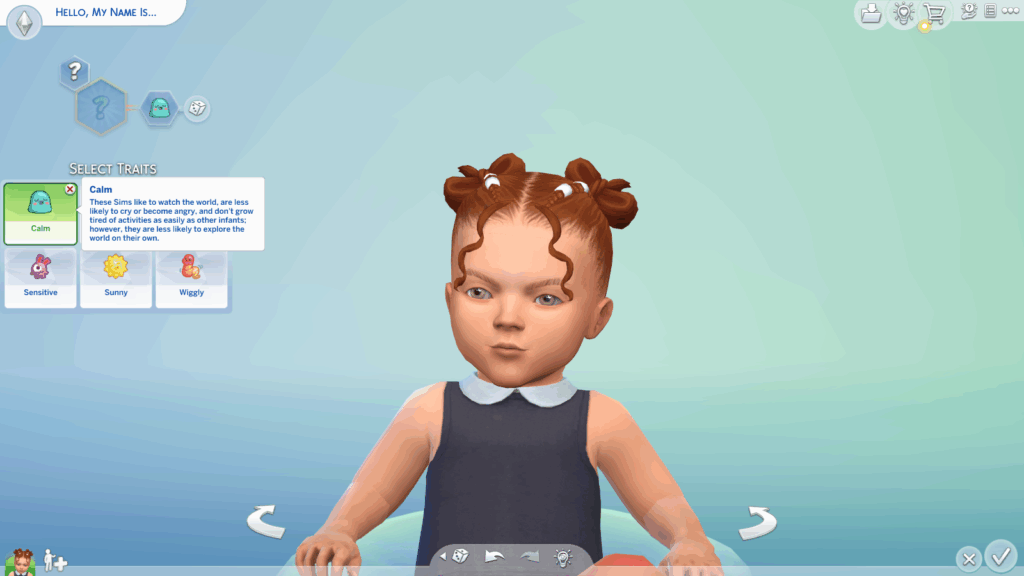
I was playing the Sims 4 100 Baby Challenge, and noticed my Sims wouldn’t age up when blowing out candles. They simply walk away without aging, yet the birthday moodlet appears. If you’re experiencing the same, here’s what I did to resolve this.
Solution
I used MC Command Center (MCCC) to age up the Sim.
- Simply click on a computer → MCCC > Sim Commands > Set Age
- Just set your desired age, e.g., 3, 4, 5.
- The Sim will age automatically.
If you don’t have MCCC or don’t want to use mods, here are other fixes you can try:
1. Check Aging Settings
- Go to:
Game Options > Gameplay - Make sure Auto Age (Played Sims) is set to Yes
- Also, check Lifespan (Short/Normal/Long)
2. Use a Birthday Cake
- Bake a cake on the stove
- Click on the cake → Add Birthday Candles
- Click the cake again → Help Sim Blow Out Candles (for toddlers/children) or Age Up Sim
- Make sure the Sim is not already queued for another action.
- The cake must be on a counter or table and fully accessible on all sides!
- If aging doesn’t occur automatically, wait until the next day.
3. Reset the Sim
- Open cheat bar: Ctrl + Shift + C
- Type: testingcheats on
- Then: resetSim Firstname Lastname
4. Try Aging Up Through CAS (Cheat Method)
- Enable cheats: testingcheats on
- Shift+Click on the Sim → Modify in CAS. You can read our guide on How to Edit Pre-Existing Sims in Sims 4 to learn the step-by-step process.
- Manually change their age.
- Save and exit CAS
- Note that your Sim may lose their aspirations
Broken CAS Items

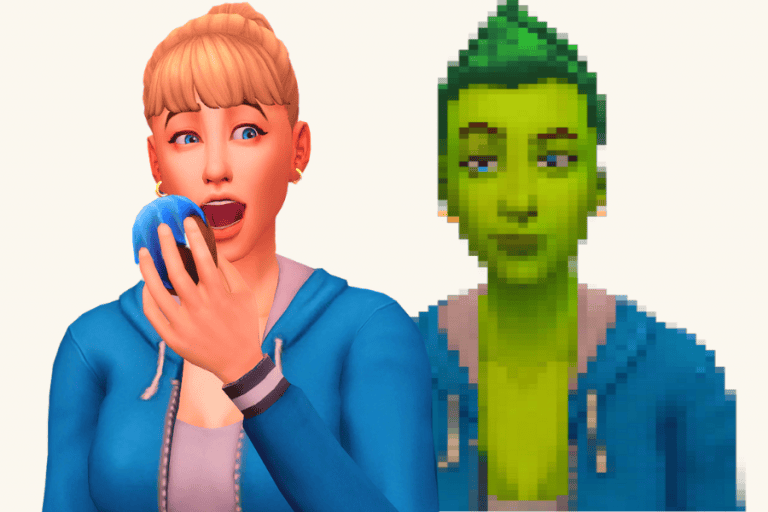
Have you ever clicked on an item in CAS, and it makes the Sim appear red and white? If so, it means the cc’s mesh or texture is broken or missing. Luckily, this issue has an easy fix.
Solution
Simply delete the CAS item that isn’t showing up from your CAS folder. Some CAS items have a thumbnail to make identification easy. So, search for the item in-game, select and delete it.
You can download an updated version of the CAS item from the creator’s page. But if the cc hasn’t been updated yet, don’t download it.
Sims 4 Pregnancy Bugs

The last few Sims 4 updates have caused a lot of pregnancy bugs in the game. For instance, the “Try for Baby” option was missing during Woohoo, and bellies for pregnant Sims appeared flat. Just a few days ago, EA announced that it had resolved any pregnancy bugs.
According to devs, the issues were related to performance optimizations. You can read the full report here.
After the bug fixes, here are some of the fixes you should expect:
- “Try For Baby” option available in all WooHoo-appropriate locations
- Pregnancy test option available
- Pregnant Sim’s belly appears pregnant
- Non-pregnant Sims not tagged as “pregnant.”
- Pregnancy mods working properly after the July 1 update
Sims 4 Stuck on Loading Screen

It feels like after every Sims 4 update, my game has to get stuck on the loading screen. The plumbob spins forever, but nothing happens. This is one of the most annoying Sims 4 bugs in the community, and I think EA needs to find a permanent solution to it.
If you’re experiencing the same issue, here’s how I fix mine.
Solution
The most common cause of the stuck on loading screen issue is outdated or broken mods. To fix it, temporarily remove your mods folder from the Electronic Arts Folder.
- Navigate to:
- Windows: Documents > Electronic Arts > The Sims 4 > Mods
- Mac: Documents > Electronic Arts > The Sims 4 > Mods
- Drag the mods folder to your desktop.
- Launch the game without mods.
- If the game loads fine, the issue is in your custom content.
- Reintroduce mods in small batches to identify the culprit.
It’s hard to know which mods or custom content is causing your game to freeze and lag. You can check the Mod List for updates on broken mods or Reddit Forums.
Sims 4 Crashing on Startup
Have you ever launched Sims 4 and it loads, but crashes almost immediately? This is one of the most common Sims 4 bugs, and it usually points to issues with outdated mods, corrupted game files, missing .dll files, or conflicting software.
Unfortunately, for this issue, you’ll have to try a combination of a few fixes. These are:
1. Delete localthumbcache.package
- Navigate to:
Documents > Electronic Arts > The Sims 4 - Delete the file: localthumbcache.package
This will clear stored data from mods, CC, and cache.
2. Remove the Entire Mods Folder
I’ve already mentioned this quick fix a few times, and it comes in handy when dealing with broken mods or custom content.
- Cut and paste your entire Mods folder to the Desktop.
- Relaunch the game.
If it launches successfully, your crash was caused by:
- Outdated script mods (like UI Cheats Extension or MC Command Center)
- Broken custom content
- Old CAS backgrounds or loading screens
- Re-add mods in small batches while launching the game each time to pinpoint the culprit.
3. Repair the Game via EA App
- Open the EA App.
- Go to My Collection → Right-click on The Sims 4 → Choose Repair.
This process:
- Re-downloads any missing or corrupted files.
- Fixes broken default .dll or .exe files that can crash on launch.
4. Update Graphics Drivers
- Outdated or incompatible GPU drivers are a common cause of Sims 4 startup crashes.
- Visit your GPU manufacturer’s site (NVIDIA / AMD / Intel) and update your graphics driver.
5. Disable Overlays & Background Apps
The following apps can cause startup crashes.:
- Discord
- Steam overlay
- MSI Afterburner
- Screen recorders or reshade tools
How to fix:
- Close all unnecessary apps before launching Sims 4.
- Temporarily disable third-party overlays or reshade presets.
6. Reset the Game Folder (Soft Reset)
- Go to Documents > Electronic Arts
- Rename the folder “The Sims 4” to something like “The Sims 4 Backup.”
- Launch the game, and it will generate a brand new folder.
If the game opens, your original folder has corrupted files (saves, mods, cache, etc.). You can slowly reintroduce content from the backup.
If you continue to experience the crashes, just delete your entire Sims 4 and reinstall a new game as a last resort.
Sims 4 Gallery Items Not Downloading
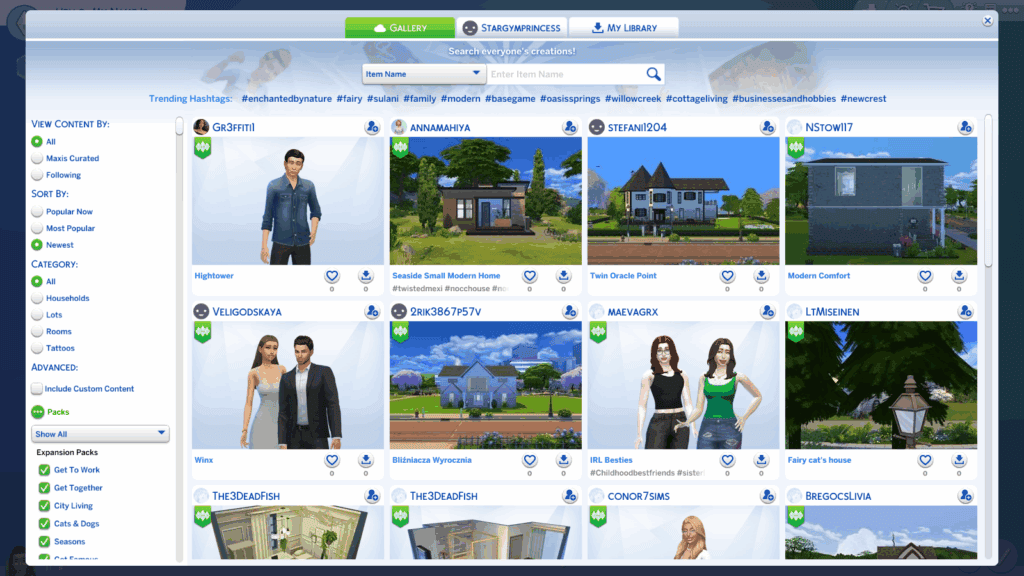
Sometimes, when I click download on an item in the gallery, it fails to download, or nothing happens. If you’ve experienced the same, try the following solutions.
Solution
1. Check Your Internet Connection
- Make sure you’re online and signed in to your EA account.
- The Gallery requires a stable internet connection, even for downloading free content.
2. Enable Online Access in Game Options
- Go to:
Options > Other > Online Features Access - Make sure this box is checked.
- Also confirm that “Disable Online Access” is not enabled under Game Options.
🔁 Restart the game after adjusting this setting.
3. Log Out and Back Into the EA App
- Log out of the EA App or Origin, then log back in.
- This refreshes your connection to the Gallery.
4. Repair the Game
- In the EA App:
My Collection → Right-click The Sims 4 → Repair
This helps if your Gallery system files are corrupted or missing.
5. Clear Cache
If you’re using the EA App:
- Click the three-line menu (top-left) → Help → App Recovery → Clear Cache
If using Origin:
- Close Origin completely.
- Delete cache folders from:
- C:Users[YourName]AppDataLocalOrigin
- C:Users[YourName]AppDataRoamingOrigin
- C:Users[YourName]AppDataLocalOrigin
- C:Users[YourName]AppDataRoamingOrigin
6. Disable Firewall or Antivirus Temporarily
Sometimes, security software blocks EA’s servers or ports needed for Gallery downloads.
- Try temporarily disabling your firewall/antivirus.
- Or, whitelist the Sims 4 and EA App in your security software.
⚠️ Only do this temporarily and re-enable security afterward.
Conclusion
That’s it, Simmers. Watch out for more troubleshooting tips and guides in the future. If there are any bugs you’ve encountered in the Sims 4 lately, please share them below, and I will include them in the post.
Thank you for being a valued member of my Patreon.
LATEST POSTS
- 10 Best Stardew Valley Quality of Life Mods (2026)
- 24+ Must-Have Sims 4 Handbag Poses (Purses, Shopping Spree, Grocery Bags, Travel, and More)
- 30+ Best Sims 4 Royal CC: Regal Looks, Elegant Gowns, and Crown-Worthy Sims
- 50+ Best Sims 4 Bags CC for Stylish Gameplay and Customization (2026 Update)
- My Favorite Sims 4 CC Finds for March 2026