
How to Change Sims 4 CAS Backgrounds, Loading Screens, and Menu Overrides
Custom visuals are one of the easiest ways to change how The Sims 4 looks and feels without touching gameplay. These polished CAS studios, aesthetic loading screens, and custom main menu overrides let you control the look of your game from the moment it loads to the time you create a Sim.
But before using any visual overrides, it’s crucial to understand how they work and how to install them correctly. Installing them the wrong way is one of the most common reasons CAS backgrounds or loading screens fail to show up in-game.
In this guide, I’ll walk you through how to change Sims 4 CAS backgrounds, along with main menu overrides and loading screens. You’ll learn where each file goes, why only one visual override should be installed at a time, and how to fix common issues when something doesn’t show up in-game.
By the end of this tutorial, you’ll know exactly how to install Sims 4 visual custom content correctly in your Mods folder, even if you’re completely new to CC.
RELATED POST: 34+ Best Sims 4 CAS Background CC to Enhance Your Game Experience
Looking for the perfect CC for your Sims?
Try our Free Sims 4 Mod & CC Finder to discover thousands of mods instantly. Search by category, creator, or style to find exactly what you need!
Sims 4 CAS Backgrounds
What Are Sims 4 CAS Backgrounds?

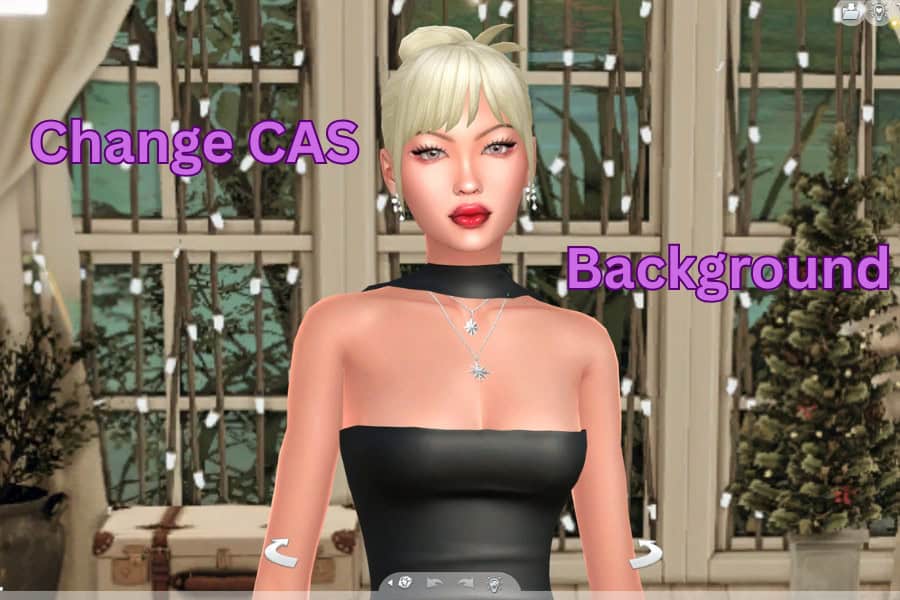
Sims 4 CAS backgrounds are a type of visual custom content that replaces the default Create-a-Sim environment. Instead of the standard EA background, your Sims appear in a custom studio, themed room, or solid-color backdrop while you’re editing them in CAS.
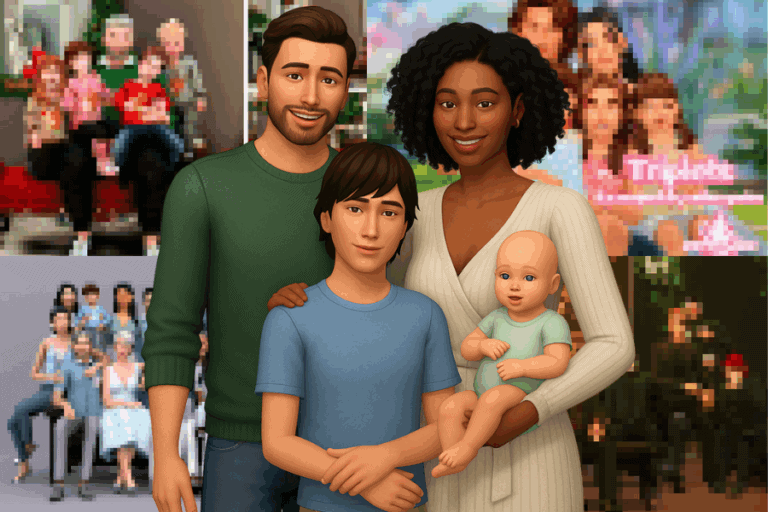
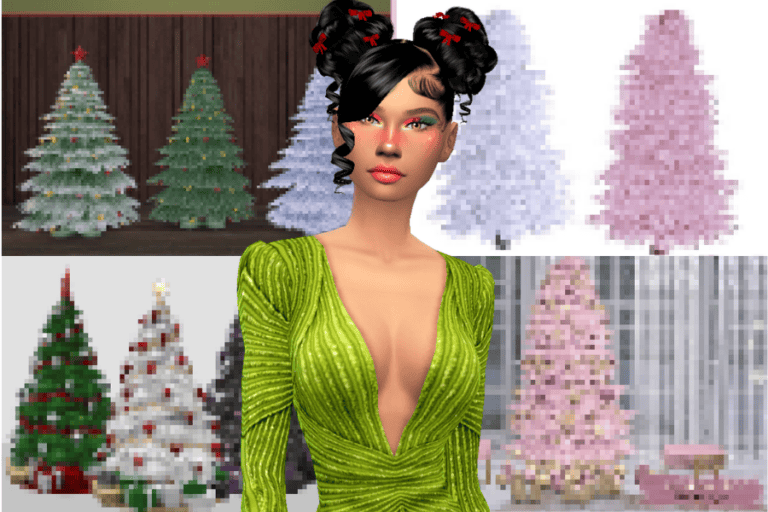
This can be a Christmas-themed CAS background, a pink CAS background, or a Halloween CAS Background.
These backgrounds are purely visual. They don’t add gameplay features, traits, or interactions. Their purpose is to improve how your Sims look on screen, especially when you’re creating lookbooks, taking screenshots, or showcasing custom content.
Helpful tip: Check out my 25 Days of Christmas Lookbook, where I use different festive CAS backgrounds to create my Sims.
Most Sims 4 CAS backgrounds come as a single .package file and automatically load when you enter Create-a-Sim. Once installed, you don’t need to enable or select them in-game. The background replaces the default CAS environment as soon as CAS opens.
One important thing to know is that you can only use ONE CAS background at a time. Installing multiple CAS backgrounds causes conflicts, which often result in the default background showing instead or the CAS environment failing to load correctly.
Because they don’t rely on scripts or gameplay systems, CAS backgrounds are safe for beginners and rarely break during game updates. When issues do happen, they’re usually related to folder placement, cache files, or having more than one background installed.
How to Change Sims 4 CAS Backgrounds
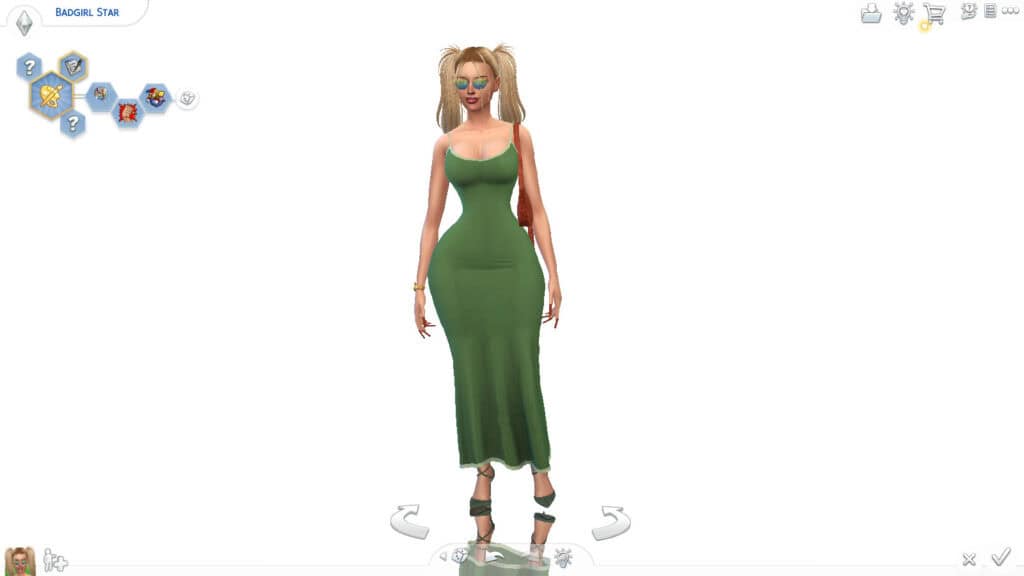
Here’s a step-by-step guide on how to install Sims 4 CAS backgrounds correctly:
Step 1: Download the CAS background
Start by downloading the CAS background from the creator’s page. Most CAS backgrounds are provided as a single .package file, though some downloads may come compressed in a .zip or .rar folder.
Always read the creator’s notes in case there are multiple versions or optional files.
NOTE: Changing the background in Create-A-Sim mode is only possible on PC and Mac using custom content. It’s not possible on consoles or without mods.
Step 2: Extract the file (if needed)
If your download is zipped:
- Right-click the file
- Select Extract Here or Extract All
- Locate the .package file inside the extracted folder
Only .package files go into your Mods folder. The game cannot read files that are still zipped. Remember, you can only add one CAS background to your game. So, with multiple files, you have to choose a single version.
Step 3: Place the CAS background in your Mods folder
Move the .package file into your mods folder. The Mods folder for The Sims 4 is typically located at DocumentsElectronic ArtsThe Sims 4Mods.
Documents
└── Electronic Arts
    └── The Sims 4
        └── Mods
            └── !CAS Backgrounds
Keep the file no more than one folder deep inside Mods. Deeply nested folders can prevent the game from detecting the file.
RELATED POST: How to Organize Sims 4 Mods Folder for Easy Access and Management
Step 4: Make sure only ONE CAS background is installed
Before launching the game, check your CAS Backgrounds folder and confirm that only ONE CAS background .package file is inside.
Installing multiple CAS backgrounds at the same time will cause conflicts and often result in:
- The default EA CAS background showing
- A blank or broken CAS environment
If you’re switching backgrounds, remove the old one first.
Step 5: Delete cache files
This step is important when installing or changing visual custom content.
Go to:
Documents/Electronic Arts/The Sims 4
Delete:
- localthumbcache.package
- avatarcache.package (if it exists)
These files regenerate automatically when you relaunch the game. But, if it’s your first time using visual overrides, you can skip this step.
Step 6: Launch the game and test
To verify that a new CAS background is active, relaunch The Sims 4 and enter Create-A-Sim mode. If installed correctly, the new CAS background should appear immediately.
If your CAS background doesn’t show up
Do this:
- Confirm Custom Content and Mods are enabled in Game Options
- Make sure the file is a .package, not zipped
- Check that the file is in the correct Mods folder
- Verify that only one CAS background is installed
- Delete localthumbcache.package again and restart the game
Once everything is set up correctly, CAS backgrounds are plug-and-play and can be swapped easily as long as you install them one at a time.
🎥 Watch this video tutorial
Even though I always know what I am doing, I ALWAYS view a tutorial when using custom visuals, and I recommend you do too (especially if you’re a beginner).
Here’s an amazing step-by-step YouTube video on how to change Sims 4 CAS background in 2025:

Sims 4 Loading Screens
What Are Sims 4 Loading Screens?
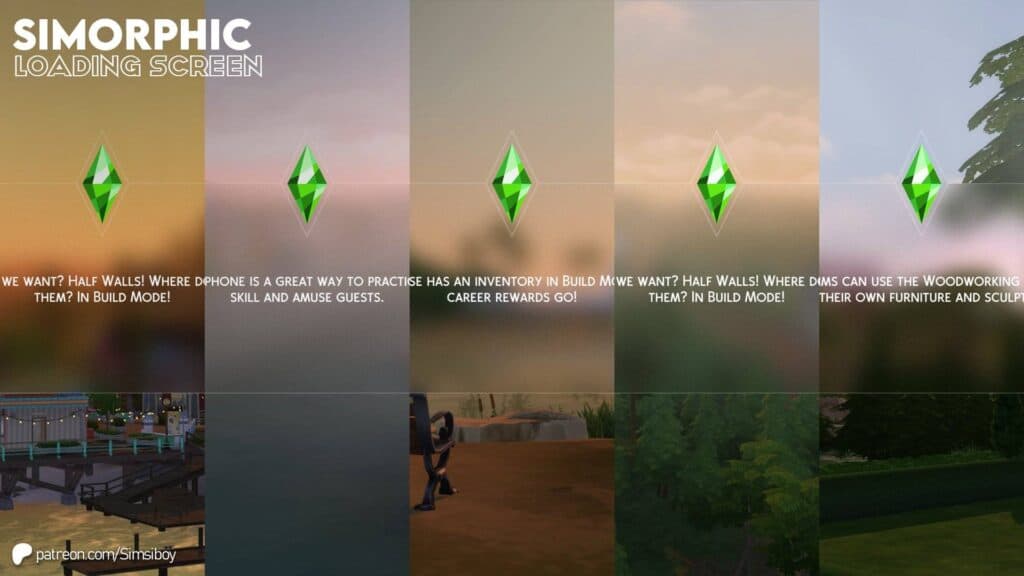
Sims 4 loading screens replace the default plumbob loading screen with custom artwork, seasonal designs, or aesthetic visuals. They’re purely cosmetic and don’t change gameplay, affect save files, or make the game load faster or slower. Their only purpose is to improve how the game looks during loading moments.
For instance, you can get seasonal loading screens, like Sims 4 Winter Loading Screens, to transform your UI into a winter wonderland.
Most Sims 4 loading screens come as a single .package file and work automatically once installed. You don’t need to select them in-game, and you can only use ONE loading screen at a time. Installing more than one will cause conflicts or prevent the custom screen from showing.
Because loading screens don’t rely on scripts, they’re beginner-friendly and rarely break after game updates. When issues occur, they’re usually caused by having multiple loading screens installed, incorrect folder placement, or not clearing cache files.
How to Install Sims 4 Loading Screens
Installing a Sims 4 loading screen works the same way as installing a CAS background. Follow these steps to avoid conflicts:
- Download the loading screen from the creator’s page.
- Extract the file if it’s zipped, and locate the .package file.
- Move the file into your Mods folder.
- Make sure only one loading screen is installed at a time.
- Delete localthumbcache.package (and avatarcache.package if present).
- Launch the game and load a save to see the new loading screen.
If the default plumbob loading screen still appears, double-check that mods are enabled and that no other loading screen files are installed.
Sims 4 Main Menu Overrides
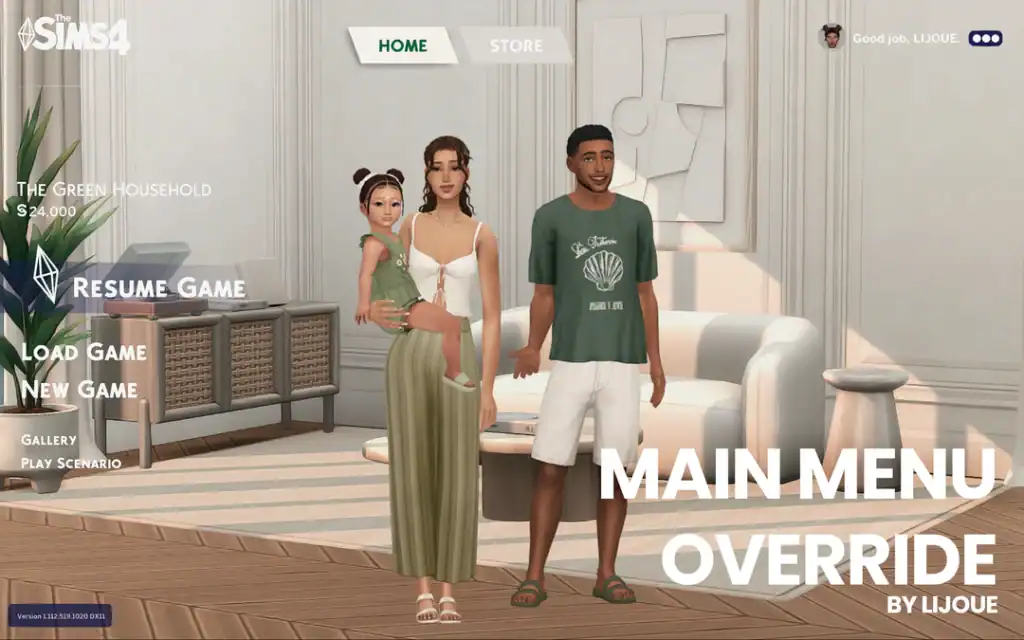
What Are Sims 4 Main Menu Overrides?
Sims 4 main menu overrides change the screen you see when the game first loads. Instead of the default EA menu, you’ll see a custom image or animated background.
Like loading screens and CAS backgrounds, main menu overrides are purely visual. They don’t affect gameplay, save files, or performance. Their purpose is to customize the look of your game’s interface, often with seasonal themes, aesthetic designs, or creator-branded visuals.
Most main menu overrides come as a .package file and load automatically when the game starts. You don’t need to enable or select anything in-game for them to work.
One important thing to note is that only one main menu override can be installed at a time. Installing multiple menu overrides will cause conflicts, which may result in the default menu appearing or visual glitches on the main screen.
Because main menu overrides don’t rely on scripts, they’re beginner-friendly. However, they are more likely than CAS backgrounds or loading screens to stop working after major game updates, since EA sometimes changes the main menu layout.
How to Install Sims 4 Main Menu Overrides
The steps for installation are similar to other visual overrides, with a few extra things to watch out for:
- Download the main menu override from the creator’s page.
- Extract the file if it’s zipped and locate the .package file.
- Move the file into your Mods folder.
- If the download includes multiple versions (for example, static vs animated), install only one version.
- Delete localthumbcache.package (and avatarcache.package if present).
- Launch the game and check the main menu screen.
The new menu should appear immediately when the game loads.
Important notes about main menu overrides
- Always use one main menu override at a time
- Remove the override before major game updates if the menu looks broken
- If your menu doesn’t change, clear your cache and restart the game
- Keep the file no more than one folder deep inside Mods
Visual Override Examples You Can Try
If you’d like inspiration or want to explore and see how visual overrides work in practice, here are a few themed pieces already featured on MustHaveMods. These examples show how CAS backgrounds and main menu overrides can completely change the look and feel of your game for seasonal or aesthetic gameplay.
Christmas CAS Backgrounds
This is a curated collection of festive CAS backgrounds perfect for Winterfest households, holiday lookbooks, and seasonal screenshots. These backgrounds add cozy lighting, Christmas décor, and themed studios to Create-a-Sim.
→ Find your dream Sims 4 Christmas CAS Backgrounds!
Halloween Loading Screens
Spooky and atmospheric loading screens designed for October gameplay. These replace the default Sims 4 plumbob menu with darker visuals, making them ideal for occult saves and Halloween challenges.
→ Discover Must-Have Sims 4 Halloween Loading Screens
Best Sims 4 Main Menu Overrides (2025)
A complete listicle featuring the best Sims 4 main menu overrides for 2025, including aesthetic, animated, seasonal, and minimalist styles. This guide is ideal if you want a fresh-looking main menu without affecting gameplay.
→ The Best Sims 4 Main Menu Overrides for 2025
CAS Mirror Backgrounds
CAS mirror backgrounds include a functional mirror in Create-a-Sim that lets you view the back of your Sim’s outfit without rotating them manually. They’re especially useful for checking details like hair length, jacket backs, dresses, and layered outfits while styling Sims.
→ Best Sims 4 CAS Mirror Background
NOTE: Some complex backgrounds with mirrors may require specific settings or compatibility with other mods to function correctly.
How to Create Your Own Sims 4 CAS Background (Optional)
If you enjoy customizing your game visuals or want a fully personalized CAS setup, you can create your own Sims 4 CAS background. This process is more advanced than installing custom content, but it’s a great option for creators, screenshot artists, or players who want complete control over how their Sims appear in Create-a-Sim.
To create a custom CAS background, you’ll need The Sims 4 Studio, which is a necessary tool for working with Sims 4 package files. Sims 4 Studio allows you to export, edit, and re-import the images used for CAS backgrounds so they can replace the default Create-a-Sim environment.
The visual itself is edited outside the game using image editing software such as GIMP or Photoshop. When creating or editing your image, it’s important to use the correct dimensions. The recommended image size for custom CAS backgrounds is 200 × 200 pixels, which helps prevent visual issues like stretching or invisible backgrounds in CAS.
When exporting your image back into Sims 4 Studio, proper export settings matter. For CAS backgrounds, the image should be exported using BC3/DXT5 compression with mipmaps generated. These settings help ensure the background displays correctly in-game and loads smoothly without visual artifacts.
Because CAS backgrounds rely on image replacements rather than meshes or scripts, most issues come from incorrect image sizing, export settings, or file placement. If a background appears invisible or doesn’t load correctly, it’s usually related to one of these steps rather than a mod conflict.
Once you finish creating your CAS background and test it in-game, it can be shared with the community through forums and social media platforms. Many creators choose to release their backgrounds alongside lookbooks, seasonal content, or themed CC collections.
For most players, downloading ready-made CAS backgrounds is the easiest and fastest option. Creating your own is best suited for advanced users or creators who want to experiment with custom visuals or contribute their own designs to the Sims community.
FAQs About Sims 4 CAS Backgrounds, Loading Screens, and Main Menu Overrides
Why isn’t my Sims 4 CAS background showing up?
This usually happens when you install more than one CAS background at the same time. Remove all other CAS background files, delete localthumbcache.package, and restart the game. Also, double-check that the file is a .package file and not still zipped.
Can I use multiple CAS backgrounds, loading screens, or menu overrides at once?
No. Each type of visual override works on a one-at-a-time basis. You can use:
- One CAS background
- One loading screen
- One main menu override
Installing more than one of the same type will cause conflicts or prevent them from showing up.
Do Sims 4 visual overrides affect gameplay or performance?
No. CAS backgrounds, loading screens, and main menu overrides are purely visual. They don’t change gameplay, add scripts, or affect save files.
Performance issues are rare and usually related to very high-resolution images on low-end systems.
Do I need to enable script mods for CAS backgrounds or loading screens?
No. These files don’t use scripts. You only need Custom Content and Mods enabled in Game Options. Script Mods Allowed can stay on, but it isn’t required for visual overrides.
Why do I still see the default loading screen?
If you still see the default loading screen, it could be because of the following:
- More than one loading screen installed
- Cache files not deleted
- Mods disabled after a game update
- File placed in the wrong Mods folder
Remove extra files, delete localthumbcache.package, confirm mods are enabled, and restart the game.
Where exactly should I place visual override files?
All visual overrides go inside your Mods folder, ideally organized like this:
- Mods!CAS Backgrounds
- Mods!Loading Screens
- Mods!Main Menu Overrides
Avoid placing them more than one folder deep inside Mods.
Do CAS backgrounds and loading screens break after Sims 4 updates?
Most of the time, no. CAS backgrounds and loading screens are very stable. Main menu overrides are more likely to stop working after major updates because EA sometimes changes the menu layout. If something looks broken after an update, remove the override and test the game.
Can I use visual overrides on console?
No. Custom content, including CAS backgrounds, loading screens, and menu overrides, only works on PC and Mac. Consoles don’t support mods or custom content.
How do I safely switch to a new CAS background or loading screen?
Remove the old file first, delete localthumbcache.package, then add the new file and restart the game. Never leave multiple visual override files installed at the same time.
Conclusion
I hope this guide helps you find the details you’re searching for and makes installing visual custom content feel less overwhelming. If you found it useful, feel free to continue exploring similar guides on MustHaveMods, or use the search bar to find specific CAS backgrounds, loading screens, or menu overrides that match your style.
Thanks for reading, and if you agree that quality, well-explained guides make modding easier, we’d love for you to sign up for our email newsletter. By signing up, you accept updates whenever we publish new Sims 4 guides, listicles, and curated CC finds. We’ll continue sharing carefully curated CC, detailed tutorials, and visual inspiration you can rely on.
If you have questions, notice something missing, or want us to cover a specific topic, leave a comment below. Your feedback helps us improve the quality of our content, and we always appreciate hearing from fellow Simmers.