

How to Fix the Sims 4 Delivery Express Error: Troubleshooting Guide
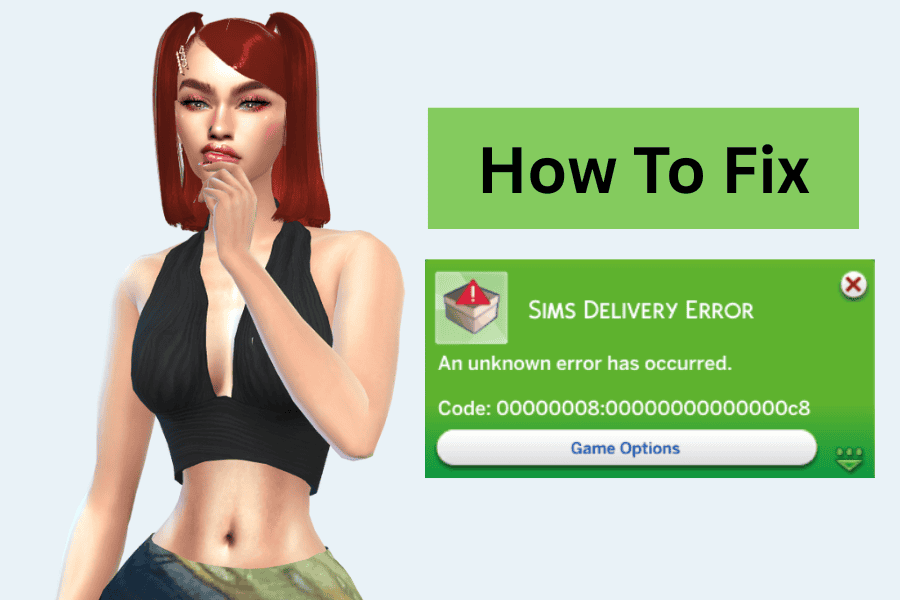
Yesterday, I finally updated my Sims 4 after what feels like forever, and, as expected, I ran into a few technical issues. The most frustrating one was the Sims 4 Delivery Express error, and at first, I had no idea what was causing it or how to fix it.
When the dreaded error code 00000008:00000000000000c8 appeared, my heart sank. I couldn’t load my saves, access new deliveries, or even open CAS without the error popping up. The good news is that I eventually found a fix, and I’m here to share it with you.
I’ve previously covered Common Sims 4 Bugs and Sims 4 Broken After Update, where you can find solutions to other problems that often come with patches.
But in this guide, we’ll focus specifically on the Sims Delivery Error, explaining the main causes and walking through step-by-step fixes so you can get back to playing without interruptions.
I’ve also included a FAQ section at the bottom, which you can check out for quick solutions.
READ NEXT: How to Fix Cas.fulleditmode Not Working in Sims 4
Looking for the perfect CC for your Sims?
Try our Free Sims 4 Mod & CC Finder to discover thousands of mods instantly. Search by category, creator, or style to find exactly what you need!
What is Sims Delivery Express (SDX)?

Before we dive into the error itself, it helps to understand what Sims Delivery Express, or SDX, actually does. Introduced by EA in late 2021, SDX is a lightweight content delivery system for The Sims 4. Instead of waiting for large game patches, SDX allows the developers to push more minor updates straight into your game. Think new hairstyles, CAS items, food recipes, bug fixes, or even cultural holiday content.
The beauty of SDX is that it runs quietly in the background. You don’t need to download a full patch or reinstall anything. New items and tweaks simply appear the next time you load the game. SDX is meant to keep your game feeling fresh between major updates without forcing players through long downloads.
However, because SDX works a bit differently than regular patches, it can sometimes get tangled up with mods, cached files, or even security software. And when that happens, you’ll see the dreaded Sims Delivery Error pop up often with the error code 00000008:00000000000000c8.
What Causes the Sims 4 Delivery Express Error

The Sims Delivery Express is meant to keep your game fresh, but when things go wrong, it usually comes down to a few common issues. These are:
1. Antivirus or Firewall Blocking the Game
The most common cause of the error message is your computer’s antivirus or firewall security feature. Sometimes it thinks The Sims 4 or the EA App is suspicious and blocks part of the process. When that happens, SDX deliveries can’t be installed correctly, leading to the error code.
2. Outdated or Broken Mods
Outdated or broken mods are the leading cause of many Sims 4 bugs. This is because they change and interfere with the game’s mechanics. As a result, after every patch or update, some mods become incompatible. Outdated script mods, especially, can clash with SDX, causing the delivery error to appear whenever you load your game.
3. Corrupted Cache Files
The file localthumbcache.package helps the game load faster, but after an update, it can become corrupted. When that happens, SDX struggles to push new content, triggering the error.
4. Damaged Game or Config Files
Updates don’t always install smoothly. Missing or damaged files in your Sims 4 installation or user folder can interfere with SDX and block deliveries.
5. Glitches in SDX Itself
Finally, sometimes the problem isn’t your setup at all, but the SDX service. Delivery updates can fail to download properly, leaving you with an error until the system is reset.
How to Fix the Sims Delivery Error
Now that you know what causes the problem, let’s go through the most effective fixes. Start with the most guaranteed solution and work your way down. In most cases, you won’t need to try them all before the error disappears.
1. Allow The Sims 4 and your launcher through Antivirus & Firewall
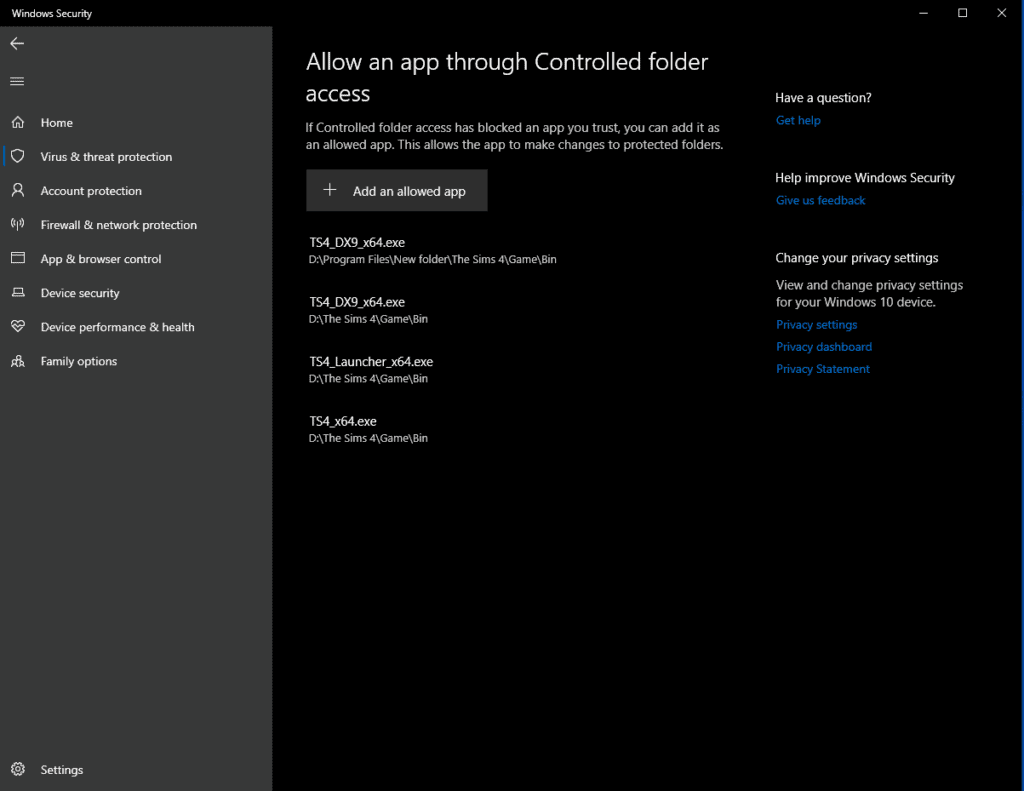
Since your computer’s security feature is the leading cause of the error, it’s crucial to start by allowing the Sims 4 through your computer’s antivirus and firewall. Follow these steps:
Windows Security (Defender):
- Open Windows Security → Virus & threat protection → Manage settings → Add or remove exclusions.
- I’ve listed all the files you should whitelist below. Add the TS4 executable, launcher executables, and your Sims 4 user folder mentioned in the list.
- If you use Controlled folder access: Ransomware protection → Manage ransomware protection → Allow an app through Controlled folder access → add TS4_x64.exe and your launcher.
Windows Firewall:
- Windows Security → Firewall & network protection → Allow an app through firewall → Change settings.
- Allow EA App/Origin/Steam and The Sims 4 (Private network at minimum).
Whitelist these apps/folders:
- Game: TS4_x64.exe (or TS4.exe)
- EA App (typical): C:Program FilesEA GamesThe Sims 4GameBinTS4_x64.exe
- Origin (legacy): C:Program Files (x86)Origin GamesThe Sims 4GameBinTS4_x64.exe
- Steam: C:Program Files (x86)SteamsteamappscommonThe Sims 4GameBinTS4_x64.exe
- Launcher/services:
- EA App: EADesktop.exe, EABackgroundService.exe
- Origin: Origin.exe, OriginClientService.exe
- Steam: steam.exe
- User folder: DocumentsElectronic ArtsThe Sims 4 (add as a folder exclusion)
Finish up:
- Restart the PC (or at least the launcher) and try Game Options → Sims Delivery → Check for New Content again.
This should fix the Sims 4 delivery express error, and it’s what worked for me. However, if it doesn’t, try the rest of the fixes on this list.
2. Remove or Update Outdated Mods

Every time The Sims 4 gets a patch, there’s a chance your favorite mods will break. Script mods in particular often clash with new updates and can block SDX from working properly, which is why the delivery error shows up. Here’s how to fix this:
Steps:
- Go to Documents > Electronic Arts > The Sims 4 > Mods.
- Move all mods and custom content to a temporary folder on your desktop.
- Relaunch the game without mods to see if the error disappears.
- If the error is gone → one or more mods are outdated.
- If the error is still there → the cause is elsewhere.
- Redownload the latest versions of your mods from trusted creators (e.g. ModTheSims, CurseForge, or the creator’s Patreon/Tumblr).
- Add mods back in batches instead of all at once, so you can easily spot which one is causing problems.
Extra tip: Always check the modder’s update notes after a new patch. Many creators release hotfixes within days, sometimes hours, of a Sims 4 update.
3. Clear Your Sims 4 Cache

One of the quickest fixes for the Sims delivery error is to delete the cache file that may have become corrupted after the update.
Steps:
- Go to Documents > Electronic Arts > The Sims 4.
- Locate the file named localthumbcache.package.
- Delete it (don’t worry, the game will create a new one next time you launch).
This often solves SDX problems instantly and is safe to do regularly.
4. Repair or Verify the Game

Corrupted or missing game files can block Sims 4 deliveries. Try to repair and verify the game to fix the error. Here’s how to do this:
- EA App / Origin: Right-click on The Sims 4 in your library → choose Repair.
- Steam: Right-click on The Sims 4 → Properties → Installed Files → Verify Integrity of Game Files.
This process may take a few minutes, but it ensures your game installation is complete and stable.
5. Reset Your Sims 4 User Folder
If the error persists, resetting your user files can help. This doesn’t delete your saves as long as you back them up.
Steps:
- Navigate to Documents > Electronic Arts.
- Find the folder named The Sims 4.
- Rename it to The Sims 4 Backup.
- Launch the game – a fresh folder will be generated automatically.
Now test if the error is gone. If it is, you can copy back your saves and tray folders from the backup. Avoid adding mods until you’re sure the issue is resolved.
6. Check for Sims Delivery Updates (SDX)
Sometimes the system fails to complete an update. You can manually trigger it:
- Open The Sims 4.
- Go to Game Options > Sims Delivery.
- Click Check for New Content.
- Restart the game.
This forces SDX to redownload any missing deliveries.
7. Reinstall as a Last Resort
If nothing else works, the safest option is a full reinstall.
- Uninstall The Sims 4 from your launcher.
- Manually delete leftover Sims 4 folders (except your backed-up saves).
- Reinstall the game fresh.
While this takes more time, it wipes out any lingering corrupted files and gives you a clean start. I recommend doing this as a last resort if none of the fixes mentioned above work.
Extra Tips & Common Mistakes

Even after fixing the Sims 4 Delivery Express Error, there are a few best practices to keep in mind so the problem doesn’t pop up again:
- Update mods after every patch. Many players forget this and reintroduce broken files into their game, causing the error to return. Always check creators’ pages for updates before adding mods back. This specifically applies to players who use .ts4scriptfiles.
- Test mods in small batches. Dropping everything back into your Mods folder at once makes it nearly impossible to identify problem files. Reintroduce them slowly so you know what’s safe. While this is annoying, it ensures you get back to playing almost immediately.
- Don’t skip cache clearing. A quick cache reset after every major update prevents most SDX hiccups before they even start.
- Keep your antivirus/firewall in check. If you whitelist the Sims 4 executables once, you’ll save yourself repeated delivery errors later on.
- Separate saves and mods. Always back up your saves and tray folder separately from mods. That way, if something breaks, you won’t lose your households or builds. You just have to add them back to your Sims 4 folder.
- Avoid piling on outdated CC. Some old custom content (especially CAS items) can conflict with newer deliveries. Retire broken files instead of keeping them around.
By following these tips, you’ll spend less time troubleshooting and more time actually enjoying your Sims.
Sims 4 Delivery Express Error FAQ
Here are some frequently asked questions about the Sims 4 delivery express error message:
Q: What does the Sims Delivery Error code 00000008:00000000000000c8 mean?
A: This code usually points to a failed Sims Delivery Express (SDX) update. It often happens because of blocked files in your antivirus/firewall, corrupted cache files, or outdated mods.
How do I fix the Sims Delivery Error?
A: Start by allowing The Sims 4 and your launcher (EA App, Origin, or Steam) through your antivirus and firewall, since security software often blocks Sims Delivery Express. If that doesn’t work, clear your Sims 4 cache (localthumbcache.package), check for outdated mods, and repair the game through your launcher. Resetting your Sims 4 user folder is the next step, and as a last resort, a full reinstall almost always resolves the issue.
Q: Will removing mods delete my saves?
A: No. Mods and custom content are separate from your save files. You can safely move mods out of your Mods folder without losing your households or builds.
Q: Do I need to reinstall every time this error happens?
A: Not at all. Reinstalling should be your last resort. Most of the time, allowing Sims 4 through your firewall, clearing your cache, repairing the game, or updating mods is enough to fix the problem.
Q: Can I still play without Sims Delivery Express working?
A: Yes, you can still play, but you won’t receive the smaller content drops (like hairstyles, recipes, or bug fixes) until SDX is fixed.
Q: Does this error affect console players?
A: No. Sims Delivery Express issues mostly affect PC and Mac users, since consoles handle updates differently.
Conclusion
The Sims Delivery Error can feel overwhelming, especially when it locks you out of your saves or prevents new content from loading. Thankfully, the problem usually comes down to a few simple issues, like overprotective antivirus settings, outdated mods, and corrupted cache files, that can be fixed in minutes. By working through the steps in this guide, you should be able to clear the error and get your game running smoothly again.
If you’re still running into trouble after trying everything, it may be worth doing a clean reinstall or keeping an eye on EA’s official forums for hotfix announcements. Most of the time, though, the fixes above will do the trick.
That’s it for this guide! If you’ve found another way to solve the Sims Delivery Error, drop it in the comments so other Simmers can benefit too. And don’t forget to share this post with friends who are struggling after an update, it might save them hours of frustration.