
Sims 4 Lookbooks CC: How to Make Your Own, My Favorite Looks, and Top Creators

If you’re anything like me, styling Sims is one of the most satisfying parts of the game. I can spend hours in CAS creating numerous outfits, like a cozy winter outfit, a Y2K moment, or full-on fairy glam. I then compile the outfits together to make Sims 4 lookbooks.
If you also love putting together looks with custom content, you’ve come to the right place. In this post, I’ll share how you can create your own lookbook, my favorite Sims 4 lookbooks, which feature curated CC outfits, and some of the top lookbook cc creators.
You’ll find outfit breakdowns with download links, creator shoutouts, and inspiration for your own Sim fashion journey.
READ NEXT: 10+ Best Sims 4 Male CC Creators You Should Follow for Epic Custom Content
Looking for the perfect CC for your Sims?
Try our Free Sims 4 Mod & CC Finder to discover thousands of mods instantly. Search by category, creator, or style to find exactly what you need!
What Are Sims 4 Lookbooks?

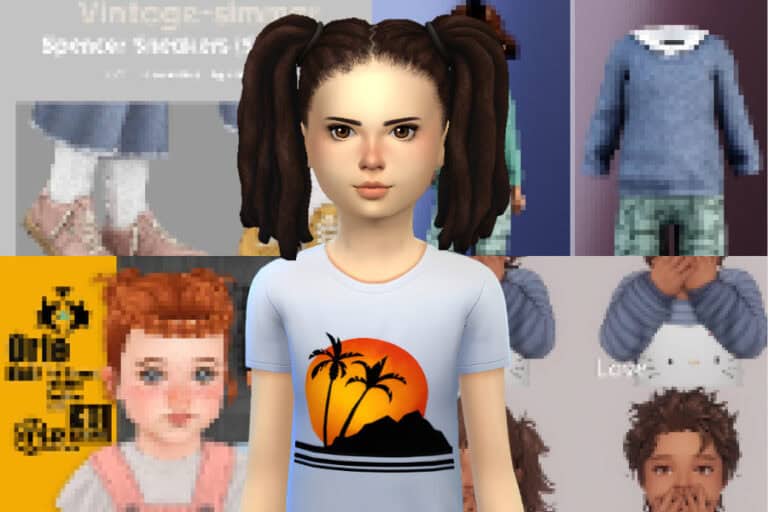
A Sims 4 lookbook is like a digital fashion spread, but for your Sims. It’s a collection of outfits styled around a specific theme, vibe, or aesthetic, usually shown through in-game screenshots. Think of it as a way to show off your Sim’s wardrobe, experiment with custom content (CC), and create visual mood boards using your favorite styles.
I have a few Sims 4 lookbooks on my page, like this Sims 4 Pixie Cut Lookbook that you can check out for reference.
Lookbooks can focus on anything, like:
- A single Sim styled in multiple outfits, e.g, party, sleep, formal, and casual outfits.
- Multiple Sims dressed to match a theme (e.g., cottagecore, streetwear, pastel goth)
- A single Sims styled in different hairstyles, e.g., different bob cuts or long hair
- A room design, such as a kitchen, bedroom, or office.
- Seasons, moods, storylines, or even inspired by real-world trends
Creators often share their lookbooks on blogs, Tumblr, Pinterest, or Instagram, complete with CC links so others can recreate the style. If you’re interested in my personal lookbooks, you can find them here.
How to Make Your Own Sims 4 Lookbooks
If you’re feeling a little creative and want to make your own Sims 4 lookbooks, here’s a simple guide to get you started:
Step 1: Choose a Theme or Mood
Start with a vibe. Are you going for Y2K, fairycore, grunge, or maybe clean girl aesthetic? Do you want to create a hair lookbook or a full-body outfit lookbook? Having a theme helps you stay focused while selecting outfits and CC. It also ensures you download the right cc for your lookbook before loading up the game.
For instance, if you’re creating a Sims 4 male hair lookbook, you’ll have to first download Sims 4 Male Hair CC, so you have enough to create your lookbook. You can also use Pinterest and Tumblr to find fashion aesthetics for inspiration.
Step 2: Create or Pick Your Sim
Launch Sims 4 and head over to CAS. You can either use a Sim you already love or make a new one from scratch just for the lookbook. I highly recommend making a new one so you can customize them to match the aesthetic or vibe you’re going for.
For example, if you’re creating a goth-inspired lookbook, your Sim’s hair and makeup need to match the dark, gothic aesthetic. Thinks smokey eyeshadow, spikey hair, and face piercings.
Step 3: Style the Outfits or the Hair
This is the fun part. Create the first outfit for your Sims 4 lookbook based on your chosen theme and direction. Don’t be afraid to mix and match CC items until it feels just right.
Save the first outfit in the Everyday slot as Everyday 1. Sims 4 gives you five outfit options in each category, so you can create five different looks in the Everyday slot.
Move on to the second look and save it as the second outfit in Everyday 2. Do the same for the other three outfits.
Step 4: Take Screenshots
Once you have your looks ready, it’s time to take CAS screenshots. You’ll need to download CAS poses for this. We have a whole selection of Sims 4 CAS Poses you can download for free.
You can get both close-up, angled shots in CAS, or you can zoom out on the outfit to take full-body shots. I suggest taking up to five poses, then you can select your preferred pose. Note that your CAS Background doesn’t really matter, as you’ll remove it when editing the photos.
If your screenshots appear low-quality and grainy. Don’t worry. You can download SRWE to improve the look of your screenshots.
Use SRWE for High-Quality Screenshots
If you’re serious about making your Sims 4 lookbooks pop, using SRWE (Simple Runtime Window Editor) is a game-changer. This tool lets you resize The Sims 4 window beyond its default limits, so you can capture sharp, high-res CAS screenshots without the UI or black bars getting in the way.
🔧 How to Use SRWE:
- Download SRWE
- You can get it from this official source.
- Extract the files into a folder on your computer.
- You can get it from this official source.
- Extract the files into a folder on your computer.
- Open The Sims 4 in Windowed Mode
- Go to Game Options → Display → set to Windowed (not Fullscreen or Borderless).
- Go to Game Options → Display → set to Windowed (not Fullscreen or Borderless).
- Launch SRWE
- Run SRWE.exe as an administrator.
- In SRWE, click Select a Running Application → choose The Sims 4 from the list.
- Run SRWE.exe as an administrator.
- In SRWE, click Select a Running Application → choose The Sims 4 from the list.
- Resize Your Window
- After selecting the game, manually enter your desired width and height (e.g., 2560×1440 or higher for 2K screenshots).
- Click Set Size, and your game window will instantly resize.
- After selecting the game, manually enter your desired width and height (e.g., 2560×1440 or higher for 2K screenshots).
- Click Set Size, and your game window will instantly resize.
- Take Screenshots in Tab Mode
- Press Tab to enter camera mode in CAS.
- Use your keyboard/mouse to frame the Sim perfectly.
- Use C to capture a screenshot, or use your PC’s snipping tool for more control.
- Press Tab to enter camera mode in CAS.
- Use your keyboard/mouse to frame the Sim perfectly.
- Use C to capture a screenshot, or use your PC’s snipping tool for more control.
Why SRWE Is Great for Lookbooks:
- No blurry compression from in-game resizing
- No black bars or UI getting in the way
- Perfect framing for Pinterest or blog layout
- You can pair it with Reshade for even more stunning results
⚠️ Reminder: Only use SRWE with care. Don’t resize to extremely high resolutions if your PC can’t handle it.
Step 6: Edit Your Lookbook

Once you’ve taken your screenshots, it’s time to edit the pictures using an editing app. I personally use Canva. Here’s what you’ll do:
- Save all the outfit pictures in a folder
- Open your editing app and upload all the pictures.
- Next, remove the background on the pictures so you have a nice, clear, white background. Some creators have custom backgrounds for their lookbooks, but ensure it’s clear and there’s no clutter.
- Resize the picture to fit the background. Refer to the picture above.
- I usually edit all the looks separately, then compile them into a collage to share on Pinterest or Instagram.
Step 7: Share Your Lookbook
Finally, it’s time to share your lookbook on social media. Be sure to list the CC used + download links (use Sims 4 Tray Importer if needed).
My Sims 4 Lookbooks
I’ve personally created a few Sims 4 lookbooks that you can check out on my Patreon. For full transparency, these lookbooks take a lot of time and effort to put together. As a result, you can only view them if you are a Patron. It’s a way for you guys to support my website and my channel.
However, I’ll still post a few of the lookbooks below to give you a sneak peek of what they entail:
Sims 4 Urban Lookbook

As a person who is into urban gameplay, this is one of my favorite Sims 4 urban lookbooks. It serves attitude, edge, and effortless slay. My inspo when creating this lookbook was black girls. I wanted to emphasize the black-girl culture, which is very modern, edgy, and sexy. If you want links to the Sims 4 cc used, click here.
Sims 4 Bob Lookbook

I enjoy making hair lookbooks more than full outfit lookbooks, and this bob cut compilation is my favorite. It features a series of bob haircuts from different creators in multiple styles and lengths. If you want links to the hairstyles used, click here.
Sims 4 Valentine Lookbook

I’m a lover girl at heart, and this past Valentine’s I created this Sims 4 Valentine lookbook for female Sims. It features a series of romantic, flirty, and sweet looks that your Sim can wear for their next date. I just went with the classic red and black combo, which works perfectly for lovers. You can get all the Sims 4 cc used here.
Sims 4 Male Urban Hair Lookbook

I rarely create male Sims in CAS, but I’m trying to be better at this and not solely focus on female Sims. This male hair lookbook is one of the first ever male Sim lookbooks I ever created. It consists of urban-inspired hairstyles for males. Think of dreadlocks, taper fades, afros, and braids. You’ll find the links to all the Sims 4 cc hairstyles here.
Sims 4 Punkrock Lookbook

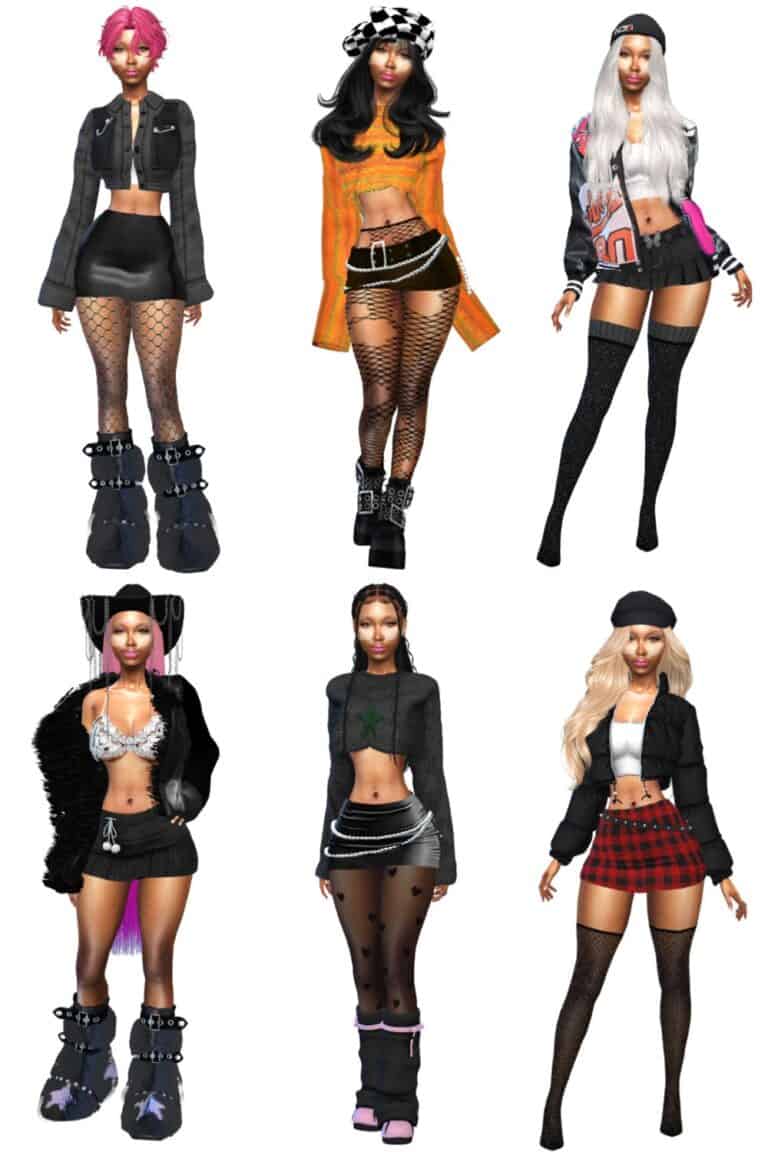
If you’re into punk, grungy, and edgy aesthetics, you’ll love this lookbook. It consists of six stylish outfits with a punk rock edge. You get the classic torn tights, chunky boots, big hair, and metal accessories. I added my own unique twist to it by making the outfits more sultry and feminine. You can find the links to all the outfits here.
Best Sims 4 Lookbook Creators to Follow
If you love seeing fully styled Sims with cohesive outfits, hairstyles, or accessories, these creators are gold. They consistently share themed lookbooks, often with download links and CC breakdowns. You should follow them for outfit inspiration, and more.
If you want to learn from the best? Follow these creators, save their lookbooks, and pay attention to how they theme, pose, and light their Sims. Many of them also credit other CC creators, making them great resources for discovering new pieces!
Final Thoughts
If you’ve always wanted to create Sims 4 lookbooks cc and don’t know where to start, I hope this in-depth guide assists you. Don’t be afraid to start putting looks together and share them on your social media.
If you have any extra questions or comments, feel free to ask them below.
LATEST POSTS
- 30+ Best Sims 4 Royal CC: Regal Looks, Elegant Gowns, and Crown-Worthy Sims
- 50+ Best Sims 4 Bags CC for Stylish Gameplay and Customization (2026 Update)
- My Favorite Sims 4 CC Finds for March 2026
- 30+ Must-Have Sims 4 Princess CC: Dresses, Tiara, Shoes, Hair, Jewelry and More
- 50+ Best Sims 4 Dress CC for Creating Feminine, Delicate, and Stunning Looks (2026 Update)