

Sims 4 Not Saving 2025: How to Fix It

I recently booted up The Sims 4 like any other day, and after hours of carefully building a new home, I went to save my progress. Guess what? I got hit with the dreaded infinite saving screen, and all my hard work was gone.
There’s nothing more frustrating than spending hours creating the perfect house or playing through a Sim’s story only to find that The Sims 4 refuses to save. Unfortunately, this isn’t just me. The Sims 4 not saving issue has become a common complaint across the community, with countless players reporting it on forums like Reddit.
If you’re stuck in the same situation, this guide breaks down the most common causes of saving errors and gives you simple step-by-step fixes to get your game running smoothly again.
Before we dive in, make sure to check out my other troubleshooting guides: How to Install and Use Sims 4 Tray Importer and How to Fix the Sims 4 Delivery Express Error.
I’ve also included a FAQ section at the bottom to answer your commonly asked questions about Sims 4 not saving.
Looking for the perfect CC for your Sims?
Try our Free Sims 4 Mod & CC Finder to discover thousands of mods instantly. Search by category, creator, or style to find exactly what you need!
What Causes the Sims 4 Not Saving Issue?

Before you can fix the problem, it helps to understand why The Sims 4 sometimes refuses to save. Here are the most common culprits:
1. Corrupted Mods or Custom Content (CC)
Mods and CC add personality to your game, but they’re also one of the biggest causes of saving issues. If you have outdated or broken files, they can conflict with new patches, preventing the game from finishing the save process.
2. Save File Corruption
Large saves, especially ones that have been overwritten hundreds of times, can become corrupted. Once this happens, the game may freeze on the save screen or fail to load your progress.
3. Cache Problems
The Sims 4 stores temporary data in cache files. If these files become bloated or corrupted, they can interfere with basic game functions, such as saving and loading.
4. Outdated Script Mods
After every major patch, script mods like MCCC, UI Cheats Extension, or Wicked Whims need updating. If you run old versions, it often leads to crashes, stuck saves, or glitchy households.
5. Corrupted Household or Lot
Sometimes it’s not the whole game but a specific Sim, object, or lot that’s broken. If a household or build is corrupted, the game may freeze when trying to save progress on that file.
6. Lack of Free Disk Space
Your game needs free space on your system drive (usually C:) to save files. If your hard drive is nearly full, the game might not be able to write new data.
7. Game Bugs or Server Issues
Occasionally, the problem is on EA’s end. This can be due to gallery outages, Origin/EA App issues, or post-patch bugs that temporarily affect the save function. Therefore, it’s essential to notify the Sims team if you encounter any problems so they can improve the Simming experience. Here’s the official Sims 4 EA Forum.
How to Fix Sims 4 Not Saving 2025

Now that you know the common causes, here are the best ways to fix Sims 4 not saving in 2025. Try these methods one by one until your game works again or choose one from the list (number 7 worked for me).
1. Restart the Game
Sometimes the issue is temporary. If The Sims 4 gets stuck on the saving screen, force-quit the game via Task Manager and relaunch it. You will lose unsaved progress, but restarting can clear out glitches.
If you continue to experience the Sims 4 not saving issue after restarting, try the next solution.
2. Test Without Mods and CC
Broken or outdated mods are the number one cause of saving errors.
- Go to Documents > Electronic Arts > The Sims 4.
- Move the Mods folder to your desktop.
- Launch the game and try saving without mods/CC.
- If it saves fine, the issue is in your Mods folder.
In that case, use the 50/50 testing method: split your mods into two groups, test one group at a time, and keep dividing until you find the broken file.
3. Restore a Save File Backup
The Sims 4 automatically creates backup versions of your saves, so you can restore the most recent save file to keep progress. Follow these steps:
- Go to Documents > Electronic Arts > The Sims 4 > Saves.
- The .save is the most recent version. The .ver# files are older backups.
- Pick the latest backup version (start with .ver0).
- Rename it to match the original save (example: change Slot_00000001.save.ver0 → Slot_00000001.save).
- Delete or move the corrupted .save to avoid confusion.
- Restart the game and load it.
If the backups don’t work:
- Try other .ver# versions one by one.
- If none work, the save might be too corrupted. In that case:
- You can try The Sims 4 Tray Importer to recover your Sims and lots from the gallery/tray folder.
- Any households or builds you uploaded to the Gallery can be re-downloaded into a new save.
- You can try The Sims 4 Tray Importer to recover your Sims and lots from the gallery/tray folder.
- Any households or builds you uploaded to the Gallery can be re-downloaded into a new save.
4. Clear the Cache
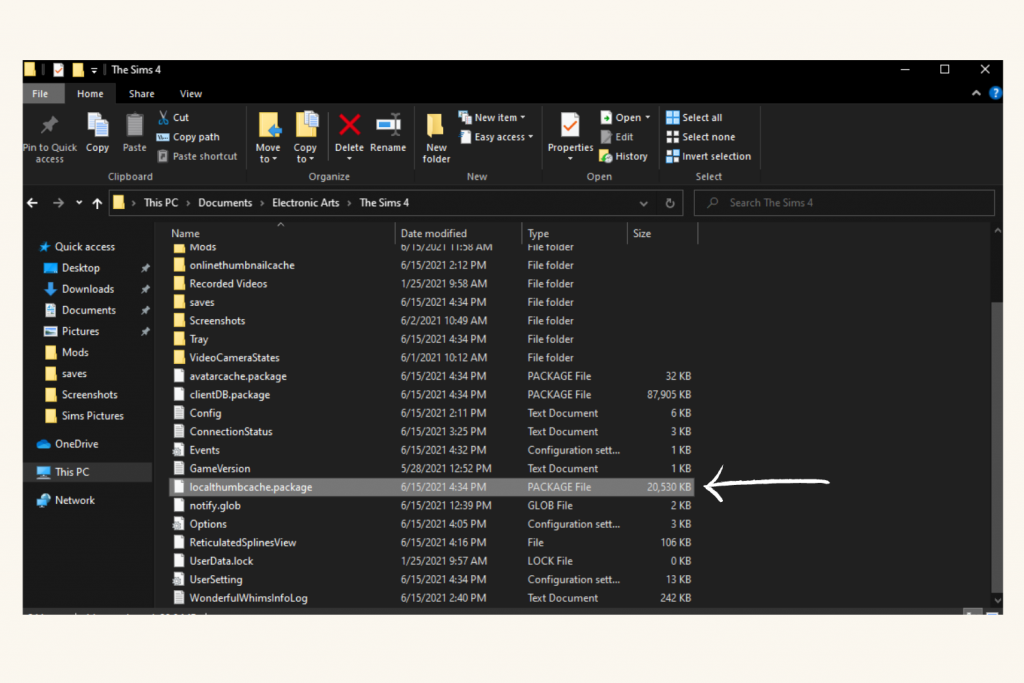
Corrupted cache files can interfere with saving. It’s safe to delete them.
- Close the game.
- Go to Documents > Electronic Arts > The Sims 4.
- Delete:
- localthumbcache.package
- The cache and onlinethumbnailcache folders
- localthumbcache.package
- The cache and onlinethumbnailcache folders
- Restart the game.
This should clear up any saving issues.
5. Repair the Game

If the game files themselves are corrupted, repairing them can fix the issue.
- EA App/Origin: Right-click The Sims 4 → Repair.
- Steam: Right-click The Sims 4 → Properties → Installed Files → Verify integrity of game files.
6. Move or Replace Problematic Households/Lots
If the saving error occurs in only one household, the household or lot may be corrupted.
- Move your Sims into a different lot via Manage Worlds.
- Delete any objects that look glitchy or buggy.
- Test by saving again in a new world.
7. Free Up Disk Space
The reason why I was experiencing the Sims 4 not saving issue was because my disk space was nearly full (it was in the red zone). I had to clear up some space for things to work correctly on my PC and in my game. Here’s what I did:
Check your C: drive (or wherever The Sims 4 is installed). If it’s nearly full, the game can’t write save data. Free at least 15–20 GB by:
- Moving large files to another drive.
- Emptying the Recycle Bin.
- Running Disk Cleanup.
8. Update Your Mods and the Game
Always update major script mods after patches. Creators like Deaderpool (MCCC) and weerbesu (UI Cheats) update quickly, so grab the newest versions. Also, ensure your game is updated in the EA App or Steam.
9. Reinstall the Game (Last Resort)
If nothing works, back up your Saves and Mods folders, uninstall The Sims 4, and then reinstall it. A clean install often clears out stubborn corruption, but this will result in losing all your saves.
Sims 4 Not Saving – FAQ
Why does my Sims 4 save keep getting corrupted?
Saves often become corrupted when they’re overwritten too many times, when mods conflict after a patch, or if the game is forced to close while saving. To reduce corruption, use the “Save As” feature to create multiple save slots and maintain backups.
Can you recover a deleted Sims 4 save?
Yes. Go to Documents > Electronic Arts > The Sims 4 > Saves. Each save has backup versions ending in .save.ver0, .ver1, .ver2, etc. Rename one of these backups to .save and reload your game.
Does custom content affect saving?
Absolutely. Outdated or broken CC is one of the most common reasons The Sims 4 won’t save. Always update mods after a patch and test by removing your Mods folder if saving suddenly stops working.
What does the infinite saving screen mean?
This usually means the game is trying to save, but something is blocking it, often a corrupted mod, a bugged household, or a full hard drive. Clearing the cache and testing without mods is the fastest way to fix it.
How do I prevent Sims 4 from not saving in the future?
- Keep multiple save files instead of overwriting one.
- Clean your cache regularly.
- Update mods and CC after every patch.
- Back up your Saves folder to an external drive or cloud storage.
Conclusion
When The Sims 4 refuses to save, it can feel like hours of gameplay have gone to waste. Luckily, most cases come down to simple issues like corrupted mods, bloated cache files, or an overloaded save slot. By testing without mods, restoring backups, and keeping your game updated, you can usually fix the problem and get back to building and storytelling without losing progress.
To prevent future headaches, remember to use “Save As” often, clear your cache regularly, and back up your saves. These small habits will protect your game from corruption and make troubleshooting easier if anything goes wrong.
If you found this guide helpful, don’t forget to check out my other Sims 4 troubleshooting posts, including:
- 10+ Common Sims 4 Bugs and How to Fix Them
- Sims 4 No EA Eyelashes: How to Get Rid of Them for Good
- Sims 4 Frozen: How to Save Without Losing Data
Happy Simming!