

How to Install and Use Sims 4 Tray Importer (Beginner to Advanced)

I’ve been creating Sims 4 lookbooks for years, and for the longest time, finding custom content (CC) was a nightmare. I’d spend hours on Google, scrolling through Tumblr tags, and sometimes it took days, if not weeks, to track down a single pair of shoes or earrings.
That changed the moment I discovered the Sims 4 Tray Importer. A simple Reddit post led me to this tool, and it completely transformed how I manage CC.
If you’ve ever downloaded a gorgeous Sim or build and couldn’t figure out what CC it uses, Tray Importer makes the process effortless. It scans your Tray folder (where your Sims, lots, and rooms are stored) and shows you exactly which CC is linked, so you can identify, export, replace, or remove items without guesswork.
In this guide, I’ll walk you step by step through installing Tray Importer, exploring its interface, and using its best features: checking CC lists, exporting Sims with or without CC, locating files in your Mods folder, replacing items, and cleaning up broken downloads. I’ll also share backup tips and troubleshooting tricks to keep your game safe while you organize.
I’ve included a FAQ section at the bottom of the post to answer some of your concerns about the Sims 4 tray importer.
READ NEXT: How to Get Sims ID in Sims 4
Looking for the perfect CC for your Sims?
Try our Free Sims 4 Mod & CC Finder to discover thousands of mods instantly. Search by category, creator, or style to find exactly what you need!
What is Sims 4 Tray Importer?
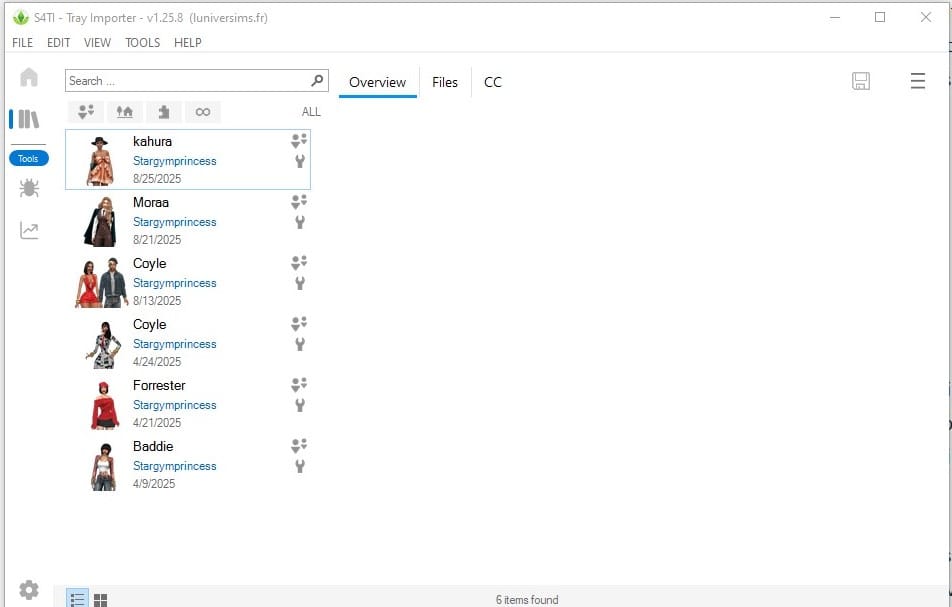
The Sims 4 Tray Importer is a free third-party program developed by L’Univers Sims. Think of it as a content manager for your Tray folder, the part of your Sims 4 files that stores all your Sims, lots, and rooms. You can download the original Sims 4 Tray Importer using this link, but as always, do your own research before adding any mods to your PC.
While The Sims 4 Gallery only shows you thumbnails and basic info, Tray Importer digs deeper. It reveals the exact custom content (CC) files linked to a Sim or build, and it gives you control over how you organize, share, or even clean them up.
Key Features
- View all Sims/lots in your Tray: You can instantly browse through every Sim, household, room, or build you’ve saved.
- Identify custom content: You can see a clear list of every CC package file attached to that Sim or lot.
- Export for sharing: You can create export folders with or without CC included, and share them on Tumblr, Patreon, TSR, or private sharing.
- Locate CC in your Mods folder: You can right-click an item and open its exact file location. This saves you hours of digging through hundreds of packages.
- Replace or remove CC: You can swap out a hair, outfit, or furniture piece with something else, or remove it entirely.
- Delete unwanted files: You can get rid of broken, outdated, or duplicate CC safely.
Limitations to Keep in Mind
Here are some limitations to keep in mind when using the Sims 4 tray importer:
- It doesn’t fix broken CC – Tray Importer can help you find the file, but if it’s corrupted or outdated, you’ll still need to delete or update it manually.
- Windows only (native): It’s only compatible with Windows PC. Mac users can run it via Wine, Parallels, or another virtual machine workaround.
- No in-game edits: Tray Importer only works on the Tray and Mods folders. It won’t let you edit a Sim directly inside CAS.
- Safe but external: Like any third-party tool, you should always back up your Tray and Mods before making any changes. It may break your game or conflict with other custom content and mods.
Benefits of Sims 4 Tray Importer
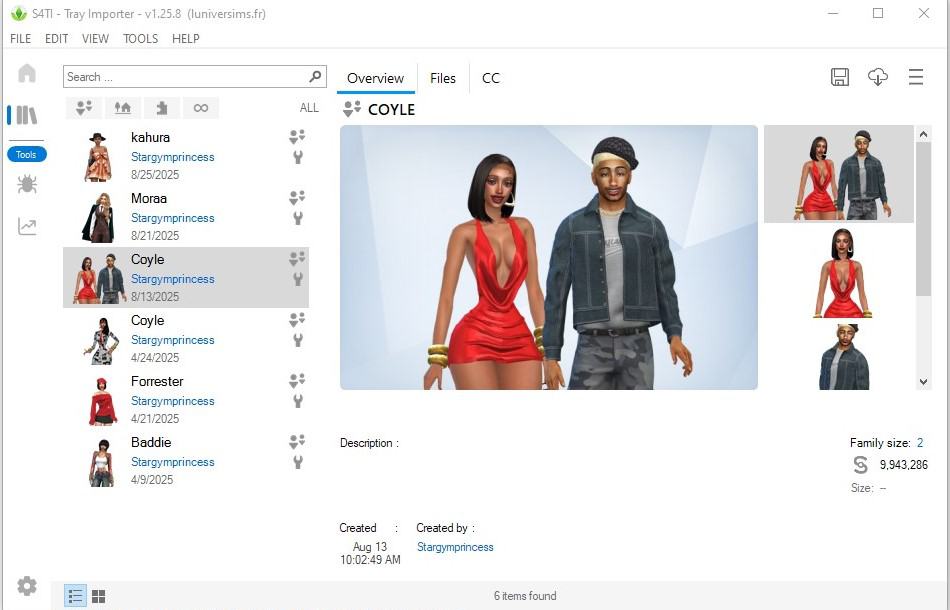
While the Sims 4 Tray Importer is often seen as a “utility tool,” its real value is in how much time and frustration it saves. Here are some of the biggest benefits you’ll notice once you start using it:
1. Quickly Identify CC
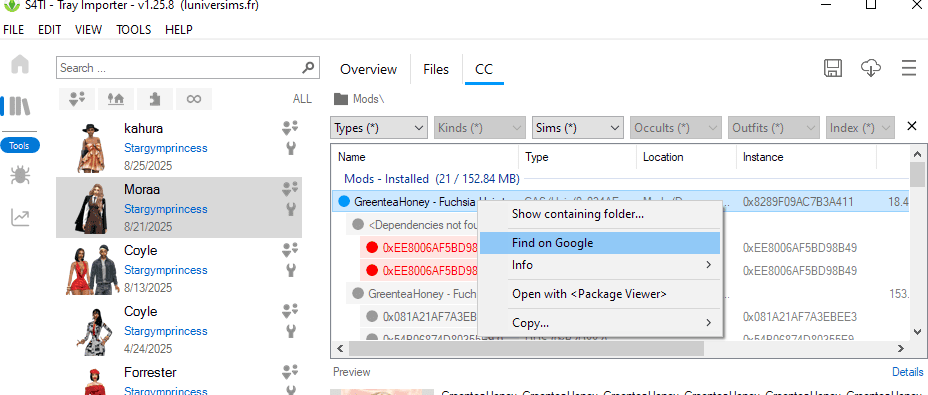
As a frequent lookbook creator, the constant guessing games trying to identify cc quickly became exhausting. But with this, there are no more guessing games. If you download a Sim or build and it shows up with missing clothing, hair, or furniture, Tray Importer lists the exact package files used. You can then:
- Right-click the cc and select “Find on Google”
- Replace it with something similar.
- Delete it if it’s broken.
2. Organize Your Mods Folder
If you’ve got thousands of CC files, finding the one shoe or hairstyle that’s outdated is nearly impossible. Tray Importer pinpoints the file path for each CC item so you can locate and manage it directly in your Mods folder.
I use this after every Sims 4 update to identify broken cc in my mods folder. For more in-depth information on this, please read our guide on Sims 4 Broken After Update: How to Fix It.
3. Export Sims and Lots for Sharing
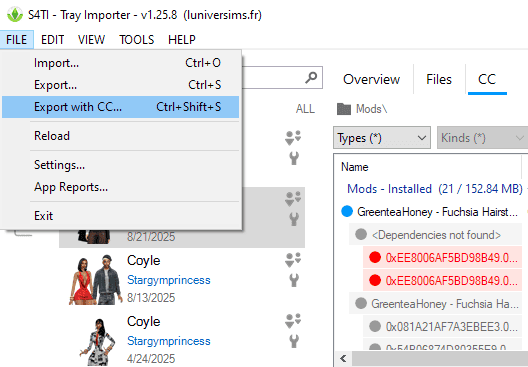
Want to upload a Sim to Tumblr, Patreon, or share with a friend? Tray Importer lets you export a clean folder:
- With CC (all files included, easy for others to install).
- Without CC (base game-only version, Gallery safe).
4. Clean Up Broken or Duplicate CC
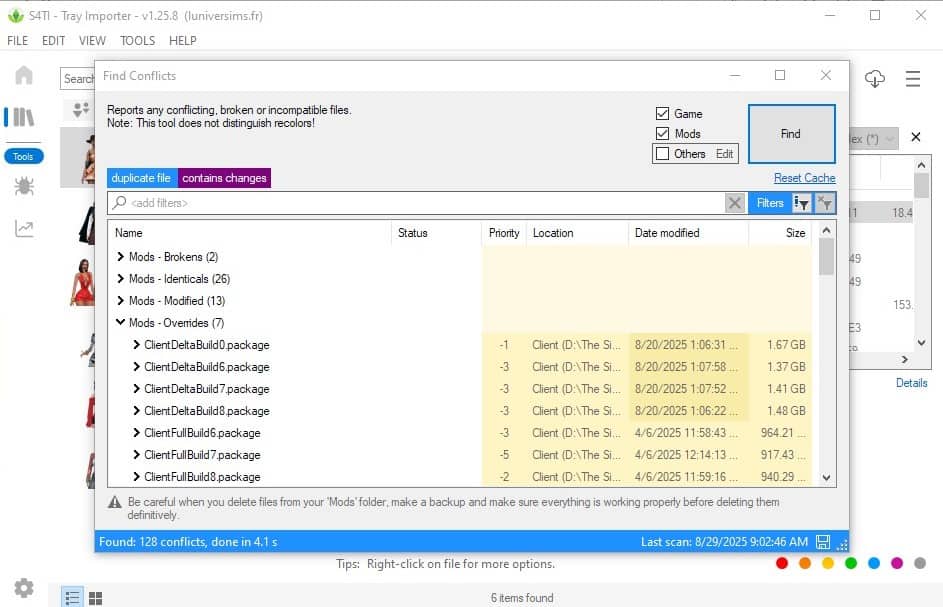
If a piece of CC causes glitches or you accidentally installed duplicates, Tray Importer helps you track down and safely delete the exact files instead of digging through endless Mods.
5. Save Time for Creators & Players
For lookbook creators, storytellers, and builders, this tool is a lifesaver. Instead of wasting hours searching for “that one top,” you’ll have it listed instantly. It also means your audience can easily download the same CC and recreate your lookbooks.
6. Keep Your Game Running Smoothly
If you have a bloated Mods folder, you’ll have longer loading times and a higher risk of errors. Luckily, you can use Sims 4 Tray Importer to remove unused or broken CC. This helps optimize performance, so your game runs smoother.
How to Install Sims 4 Tray Importer
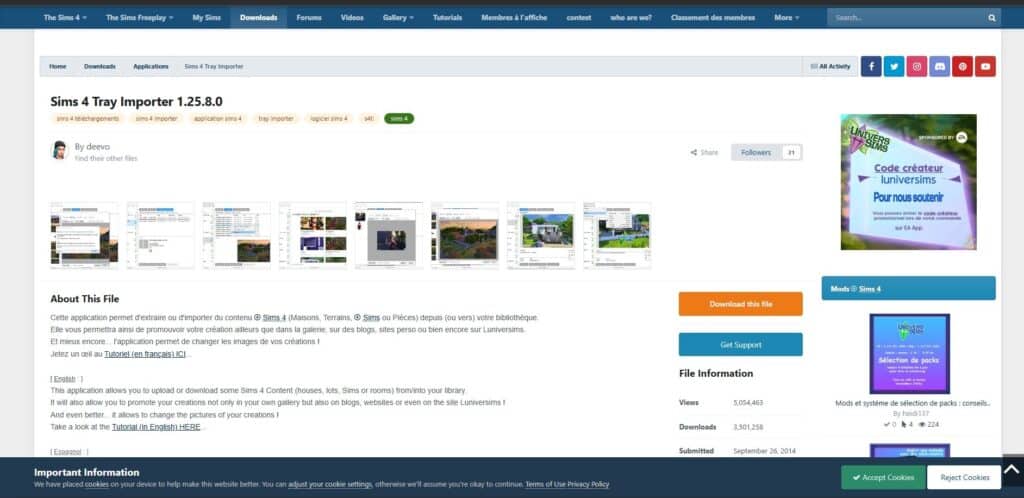
Before you can start identifying and exporting CC, you’ll need to download and install the program. Tray Importer is lightweight, but it does require a few setup steps. Here’s how to install the program on your PC:
Step 1: Download from the Official Source
- Go to the L’Univers Sims website (the original developers).
- Look for the latest version of Sims 4 Tray Importer.
- Click Download
Please avoid third-party links since some sites bundle unsafe files.
Pro tip: Bookmark the page. Tray Importer updates occasionally, especially when EA releases major Sims 4 patches, so you’ll want the official site handy.
Step 2: Extract the Files
- Once downloaded, you’ll get a compressed .zip file.
- Right-click the file and select Extract All (or use a tool like WinRAR/7-Zip).
- This will create a folder with the installation files.
Step 3: Run the Installer
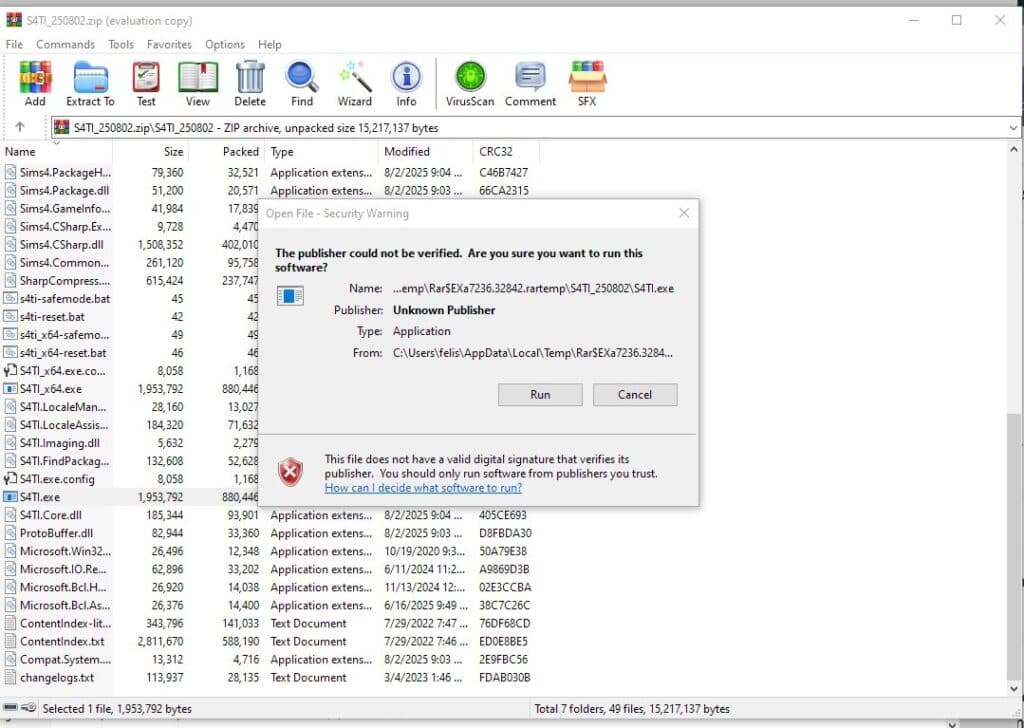
- Open the extracted folder.
- Double-click the TrayImporterSetup.exe file.
- Follow the on-screen prompts (choose installation folder, accept terms, etc.).
- When finished, you’ll see Sims 4 Tray Importer in your programs list or desktop.
Step 4: Launch the Program
- Open Tray Importer.
- On first launch, it will automatically locate your Tray folder:
Documents > Electronic Arts > The Sims 4 > Tray - If it doesn’t, you can point it manually in Settings.
Step 5: Check Requirements
- Operating System: Windows 7 or higher.
- .NET Framework: Some versions of Tray Importer require the Microsoft .NET Framework. If prompted, allow it to install.
- Mac Users: There isn’t an official Mac version, but you can run Tray Importer through Wine, Parallels, or another virtual machine.
Quick Troubleshooting During Install
- You may get an Antivirus warning, as some antivirus programs may flag third-party installers. If you downloaded from L’Univers Sims, it’s safe to whitelist it. I have a section on how to whitelist a Sims 4 program in this article about How to Fix the Sims 4 Delivery Express Error.
- If the program won’t open, check whether you have the latest version of .NET Framework installed.
- If it’s the wrong Tray folder, go into Tray Importer Settings → Game Folder and browse to your Sims 4 Tray manually.
How to Use Sims 4 Tray Importer
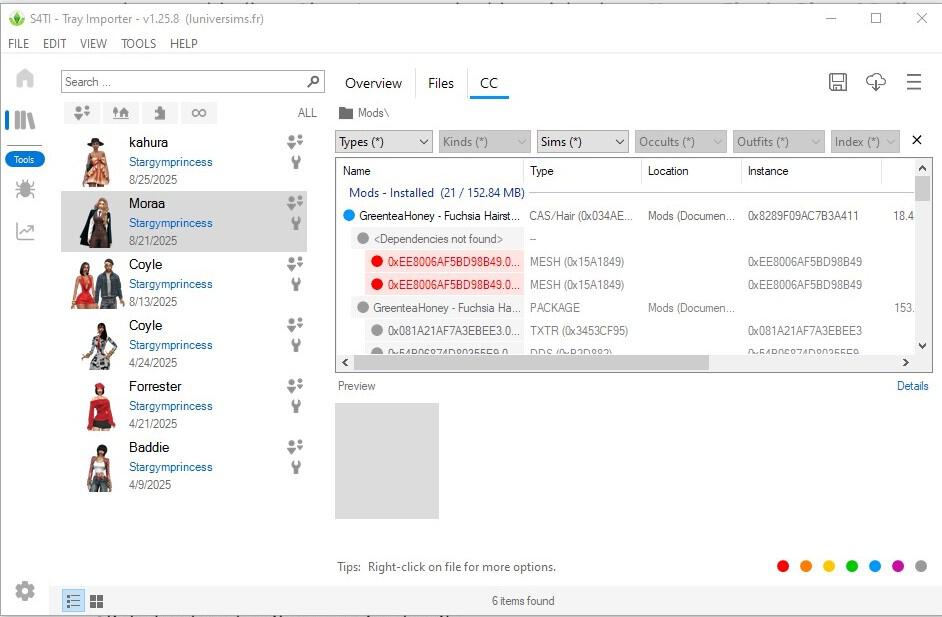
Once you’ve installed Sims 4 Tray Importer, it’s time to use it. The program is simple to navigate, but each tab has powerful features that will save you time. Here’s a breakdown of how to use the program.
1. Viewing Sims and Lots in Your Tray
- When you launch the program, the Gallery tab automatically displays thumbnails of every Sim, household, lot, and room saved in your Tray folder.
- Scroll through the list until you find the Sim or build you want to inspect.
- Click the thumbnail to open its details.
For example, if you just downloaded a household from the Gallery, Tray Importer will show their exact files here, even if they don’t appear in CAS.
2. Checking Which CC a Sim or Lot Uses
- Select your Sim/lot from the Gallery.
- Click the CC tab to reveal a list of all the package files connected to that creation.
- Each entry shows the file name (and sometimes the creator’s name if included in the file).
For instance, you’ve created a lookbook and want to know all the cc you used from head to toe. In the CC tab, you’ll see the file name of each item (e.g., nightcrawler_hair_recolor.package) so you can track it down or redownload it. Just search the name on Google or another search engine, and you’ll find its direct source.
But first, you must save the Sim to a household for it to show up in the tray importer.
3. Locating CC in Your Mods Folder
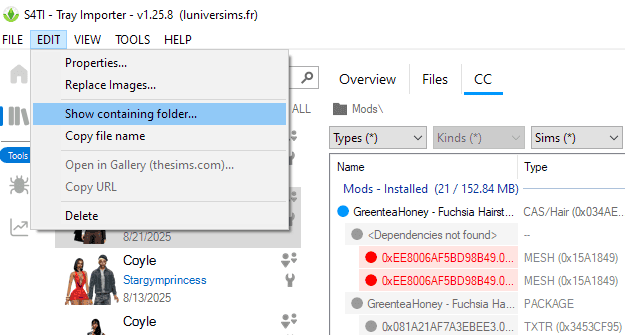
- Right-click on any CC item in the list.
- Choose Show Containing Folder.
- Tray Importer will open the exact Mods subfolder where the file is stored.
This is especially beneficial to players with hundreds of files in their mods folder, organized into subfolders. The feature saves you hours of searching when you only want to delete one broken lipstick. Don’t forget to read our guide on How to Organize Sims 4 Mods Folder for easy cc access and management.
4. Exporting Sims and Lots
- With your Sim/lot selected, click File → Export.
- Choose one of two options:
- Export with CC → includes the Tray files and the linked CC, so whoever downloads has everything.
- Export without CC → exports only the Tray files, leaving CC out (Gallery-friendly).
- Export with CC → includes the Tray files and the linked CC, so whoever downloads has everything.
- Export without CC → exports only the Tray files, leaving CC out (Gallery-friendly).
- A folder will be generated, which you can zip and share.
If you’re making a Sims 4 lookbook for your blog, exporting with CC means your readers get the exact same outfits you showcased.
5. Replacing or Removing CC
- In the CC list, right-click on an item.
- Select Replace to swap it with another CC file of your choice.
- Or select Remove if you don’t want the Sim/lot to use that item anymore.
I use this feature to remove cc I don’t like from a Sim download. For instance, if I like a Sim’s outfit but not the hair, I delete the hair and replace it with one I already own in CAS.
6. Cleaning Up Broken or Unwanted CC
- If an item is broken or shows up as a “?” in-game, Tray Importer helps you find and delete it.
- Right-click → Show Containing Folder → delete the package manually.
After an EA patch, some custom content glitches. Tray Importer lets you locate the exact outdated file so you can remove it instead of uninstalling random CC.
7. Additional Tools
- Images Tab: Export preview pictures of Sims/lots. This is handy if you’re organizing builds or creating blog previews.
- Search & Filter: Use the filter bar to quickly find specific Sims, creators, or builds in your Tray.
- Duplicate Check: Spot and remove duplicate Sims or lots cluttering your Tray.
All these features make the Sims 4 tray importer a command center for CC management.
Tips for Using Sims 4 Tray Importer
Tray Importer is straightforward once you get used to it, but these best practices will help you avoid mistakes and make the tool even more effective. Here are my number one tips when using this effective tool:
1. Always Back Up First
Before deleting or replacing anything, make a quick copy of your Tray and Mods folders. That way, if you remove the wrong file, you can restore it easily.
- Path for Tray: Documents > Electronic Arts > The Sims 4 > Tray
- Path for Mods: Documents > Electronic Arts > The Sims 4 > Mods
2. Use It for CC Clean-Up
Over time, the mods folders can get bloated. Tray Importer helps you:
- Find the CC you don’t use anymore.
- Remove duplicates.
- Delete broken or outdated files. Cleaning regularly keeps your loading screens short and your game stable.
3. Export Images for Organization
The Images tab lets you save preview pictures of Sims and lots. This is great for labeling exports before uploading and perfect if you’re writing a blog post or creating a lookbook and need visuals.
4. Use “Export Without CC” for Speed
If you plan to upload Sims or builds to the official Gallery, use Export without CC. This strips out custom files and ensures your uploads are Gallery-safe.
5. Track Down Hard-to-Find CC
Some CC creators don’t tag files clearly. Tray Importer shows the exact file name, which often includes the creator’s name or collection. Plug that into Google, TSR, or Tumblr search to track it down faster.
6. Keep the Program Updated
Tray Importer occasionally receives updates to stay compatible with EA’s latest patches. If you notice errors or crashes, check the official L’Univers Sims site for a newer version.
FAQs About Sims 4 Tray Importer
Do I need a new save file when I change outfits or CC in Tray Importer?
Yes, you do. Many players say you don’t need a new save file when you change outfits, but based on personal experience, you do. I had to create a new household and save file after changing my Sim’s outfit for the changes to appear in the Sims 4 tray importer.
Can Sims 4 Tray Importer fix broken CC?
Not directly. It can’t repair files, but it helps you locate broken or outdated CC so you can delete or replace it.
Is it safe to export Sims and lots with CC included?
Yes, but be mindful of permissions. Some creators don’t allow their CC to be redistributed. If you’re posting on Tumblr, Patreon, or TSR, link to the creators instead of bundling their files.
Does Tray Importer work on Mac?
There’s no official Mac version, but you can run it with Wine, Parallels, or another Windows emulator.
What’s the difference between exporting with CC and without CC?
With CC, it creates a full folder including every linked file, and this is ideal for private sharing. Without CC, it exports only the Tray files, which makes the Sim/lot Gallery safe.
Is Sims 4 Tray Importer safe to use?
Yes. It doesn’t change your actual save files, only reads your Tray folder and helps you locate CC. Just make sure to always back up your Mods and Tray folders before deleting anything.
Conclusion
The Sims 4 Tray Importer is one of those tools that feels essential once you start using it. Instead of wasting hours hunting for custom content, you can instantly see which CC a Sim or build uses, locate the exact file in your Mods folder, and export creations for easy sharing.
Whether you’re a lookbook creator, builder, or casual player, Tray Importer keeps your CC organized and your game running smoother. Just remember to back up your Mods and Tray folders before making changes, and always respect CC creators’ sharing permissions.
Now that you know how to install and use Tray Importer, you can save time, clean up broken CC, and share Sims or builds with confidence.
If you found this guide useful, check out my How to Have Triplets in Sims 4 and How to Edit Uneditable Lots guides.